The dashboard is the dispatcher’s operational starting point.
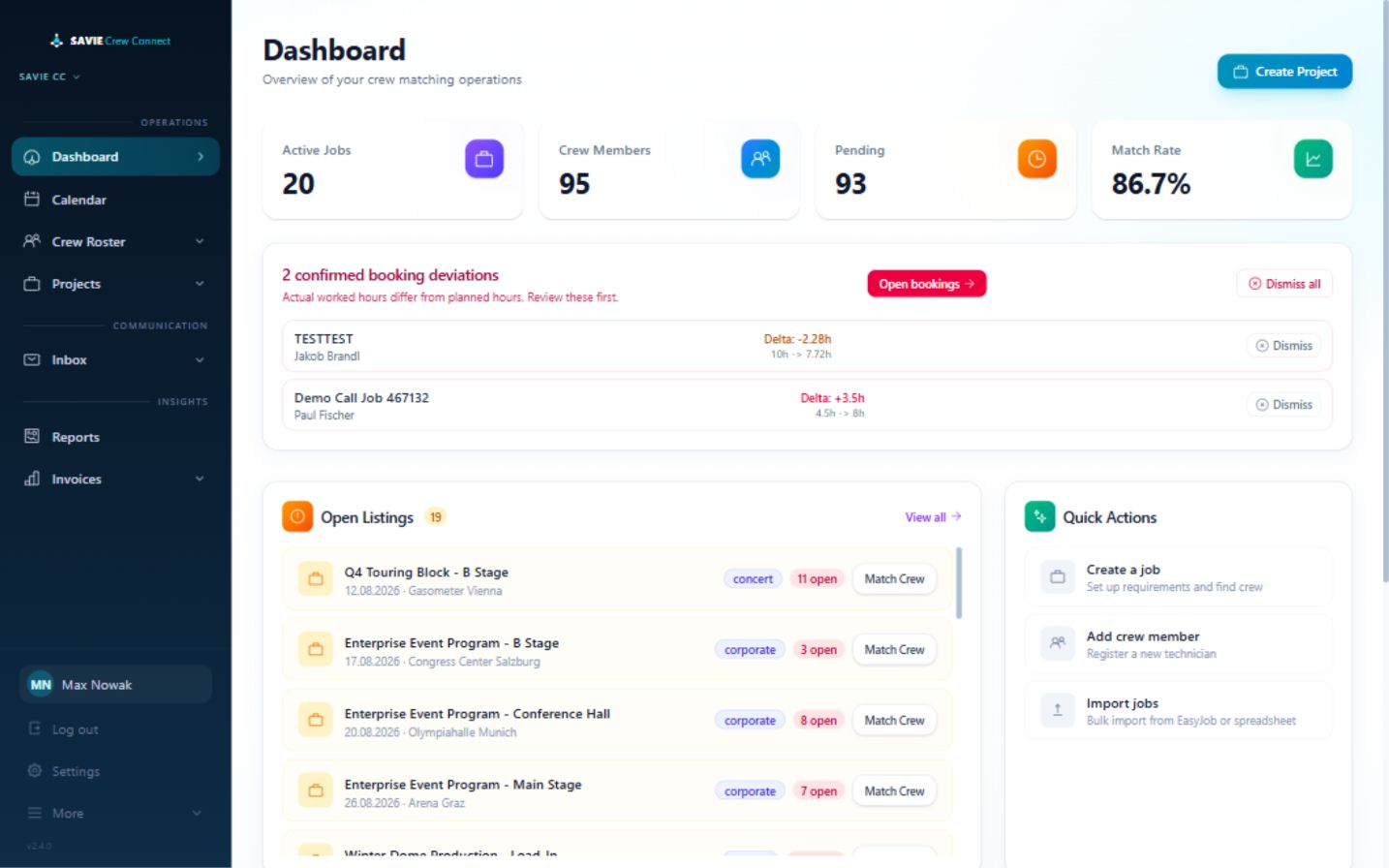
SAVIE dispatcher dashboard
Summary cards
Active Jobs opens the project list.
Crew Members opens the Crew Roster.
Pending opens bookings that still require progress.
Match Rate opens Reports.
The values always reflect the active workspace.
Confirmed booking deviations
This alert appears when a freelancer’s actual worked hours differ from the planned hours of a confirmed booking.
Select Open bookings to review the affected bookings.
Compare planned and actual time.
Use the downstream invoice and review process as appropriate.
Dismiss an alert only after it has been reviewed.
Open Listings
Open Listings shows upcoming jobs with unfilled positions. Each row displays the date, venue, event type where available, and number of open positions. Select Match Crew to open the staffing screen for that job.
Quick Actions
Create a job opens project/job management.
Add crew member opens the Crew Roster.
Import jobs opens the bulk-import workflow.
Recent Jobs and Recent Activity
Recent Jobs provides direct access to recently handled work. Recent Activity records important booking and application events such as approvals, declines, and cancellations.
Getting started
Freelancer dashboard
Audience: freelancerReviewed: 2026-08-12
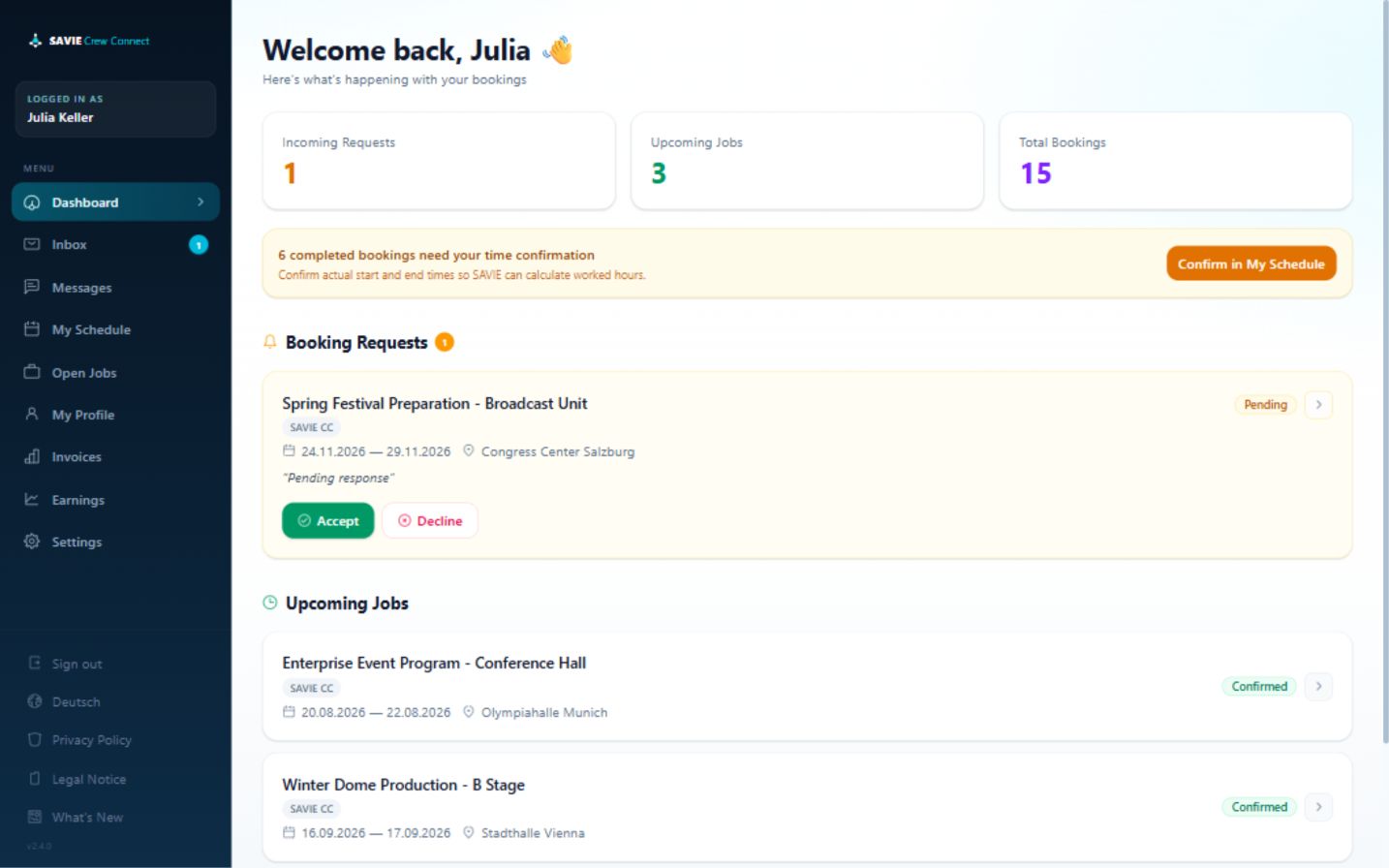
The freelancer dashboard summarizes requests, upcoming jobs, and actions needed before invoicing.
SAVIE freelancer dashboard
Summary
Incoming Requests counts booking requests awaiting a response.
Upcoming Jobs counts confirmed future work.
Total Bookings shows the profile’s booking history.
Booking Requests
Each request shows the job, organization, dates, location, current status, and an expandable detail view. Use Accept or Decline only after reviewing the complete role and rate. Rate negotiation is handled from the Inbox when the role allows it.
Upcoming Jobs
Confirmed future work is listed below the requests. Expand an item to review its details. The same booking also appears in My Schedule.
Hours confirmation
When completed bookings still need actual start and end times, SAVIE displays an hours-confirmation notice. Select Confirm in My Schedule. Eligible work cannot move cleanly into the invoice workflow until the actual hours have been supplied.
Getting started
What SAVIE does
Audience: allReviewed: 2026-08-12
SAVIE connects event staffing, skills, availability, booking communication, work confirmation, and invoicing in one workflow.
The core workflow
An administrator configures the workspace, team, disciplines, gear, venues, rates, and booking policies.
Dispatchers add or invite crew members. Crew profiles record disciplines, equipment experience, proficiency, location, rates, and availability.
A dispatcher creates a customer, project, and one or more jobs. Each job defines dates, location, phases, roles, quantities, and skill requirements.
SAVIE recommends suitable crew using the job requirements, crew skills, and availability. Recommendations support the dispatcher; they do not make the final staffing decision.
The dispatcher sends requests, or freelancers apply to open jobs. Both sides can accept, decline, or negotiate the rate.
Confirmed work appears in the project calendar and the freelancer schedule.
After the work, the freelancer confirms actual start and end times. SAVIE highlights meaningful differences from the planned hours for the dispatcher.
The dispatcher can rate the crew member. The freelancer can invoice one or several eligible completed jobs, and both sides can track the invoice status.
Dispatcher workspace
The dispatcher dashboard summarizes active jobs, crew size, pending bookings, and match rate. It also highlights open roles, shortcuts, recent activity, and confirmed bookings whose actual hours differ from their plan.
SAVIE dispatcher dashboard
Freelancer workspace
The freelancer dashboard shows incoming requests, upcoming work, total booking history, and work that still needs actual-hours confirmation. The freelancer can manage requests, negotiate rates, maintain availability, browse open work, message dispatchers, submit invoices, and review earnings.
SAVIE freelancer dashboard
Workspaces and data separation
A dispatcher may belong to more than one organization. The selected workspace controls the customers, projects, crew, bookings, reports, invoices, and settings that are displayed. Always confirm the workspace name before working with data.
Language and privacy
SAVIE supports English and German. Privacy functions include cookie preferences, consent history, personal-data export, and account erasure/anonymization. Access to workspace data is role-based and scoped to the active organization.
Features that may not be available everywhere
Marketplace, checkout, integrations, booking reminders, and automatic booking expiry can depend on the workspace plan, product configuration, or an opt-in policy. The relevant handbook page will identify these conditions.
Getting started
Roles and access
Audience: allReviewed: 2026-08-12
SAVIE presents different navigation and actions according to the user’s role and active workspace.
Workspace roles
Role
Primary purpose
Typical access
Administrator
Configure and govern a workspace
Dispatcher functions plus team, billing, policies, taxonomy, integrations, and branding
Requests, applications, negotiation, schedule, availability, profile, messages, invoices, and earnings
Own employee
Manage assigned work
Crew portal functions; the profile remains exclusive to its organization and is not listed in the marketplace
Superuser
Platform-level administration
May access multiple organizations and restricted administration functions
Administrator and dispatcher permissions belong to an individual workspace. A person can therefore be an administrator in one workspace and a dispatcher in another.
Sign in as a dispatcher or administrator
Open the SAVIE login page.
In Dispatcher Login, enter the account email and password.
Select Sign in.
If the account belongs to several organizations, confirm the active workspace before opening or changing records.
Sign in as crew
Open the same SAVIE login page.
In Crew Login, enter the crew account email and password.
Select Sign in as freelancer.
The development-only quick-select option is not part of the customer workflow and must not appear in published customer instructions.
Invitations and account activation
Workspace administrators invite other administrators or dispatchers from Settings → Team and select their workspace role.
Creating a crew profile does not by itself create portal credentials.
A dispatcher sends the crew member a separate profile-claim invitation from the Crew Roster.
Invitation links connect the new account with the intended workspace or crew profile.
Access restrictions
A workspace with a pending-payment, expired-trial, or cancelled subscription can be blocked from protected product areas. Marketplace, checkout, integrations, and some policies can also depend on plan or workspace configuration.
Security guidance
Do not share dispatcher accounts.
Give administrators only to people who manage company-wide configuration.
Deactivate team access when a person leaves the organization.
Use the password-reset link rather than passing passwords between users.
SAVIE provides separate dispatcher and crew sign-in paths on the same sign-in page. Use the path that matches the account represented by the credentials.
Company registration
A new company account requires the company name, administrator's full name, email address, password, and acceptance of the B2B Terms and Privacy Policy. When email delivery is configured, SAVIE sends a verification link before the account enters the product. Verification links are valid for 24 hours.
Team invitation
An administrator opens Settings > Team.
They enter the recipient's email address and choose Administrator or Dispatcher.
SAVIE sends a one-time invitation link valid for 48 hours.
The recipient opens the link, checks the workspace and email, enters their full name, and creates a password.
SAVIE signs the new user in and adds the assigned workspace membership.
Crew invitation
A crew profile and a crew login are separate concepts. The dispatcher first creates or imports the profile, then sends the roster invitation. The invitation lets the recipient claim that profile and creates or links their login. If an account already exists for the email, SAVIE links the existing account instead of creating a duplicate.
Passwords created through an invitation must contain at least 10 characters, including an uppercase letter, a lowercase letter, and a digit.
Password recovery
Select Forgot password? under either sign-in path.
Enter the account email and submit.
SAVIE always displays a neutral confirmation so account existence is not disclosed.
Open the reset email within one hour.
Enter and confirm a new password that meets the password policy.
An invitation or reset link is single-use. If SAVIE reports that it is invalid or expired, request a new one rather than forwarding an old link.
Use this sequence to prepare a new SAVIE workspace before operational booking.
Recommended setup order
Confirm the workspace name, subscription, and responsible administrator.
Invite dispatchers and additional administrators in Settings > Team.
Configure standard rates by discipline and phase.
Review negotiation, cancellation-alert, reminder, and expiry policies.
Add reusable venues and check-in defaults.
Review the discipline and gear taxonomy used by matching.
Add or import the crew roster and send portal invitations separately.
Add customers, then create the first project and jobs.
Configure external integrations only after the native workflow is understood.
Run a controlled test from job creation through booking, hours, and invoice.
Team administration
Administrators can invite a team member, assign Administrator or Dispatcher, change the workspace role, and deactivate or reactivate access. A user cannot deactivate their own membership from the team list, and superuser accounts are protected from ordinary team changes.
Deactivation ends access; it does not delete the person's historical actions or the workspace's operational records.
Workspace safety
Always confirm the active workspace in the sidebar before editing settings or data. Crew, customers, projects, bookings, financial records, settings, and reports are scoped to that workspace.
A workspace is an organization’s isolated operating area in SAVIE. Customers, crew, projects, jobs, bookings, settings, reports, and financial records shown in the application belong to the selected workspace.
Switch workspace
Find the workspace name at the top of the left navigation.
Select the workspace name to open the organization list.
Select the organization you want to work in.
Wait for the current page to refresh.
Confirm the workspace name and a recognizable dashboard value before taking an action.
Switching workspace changes the data context. It does not copy or move records between organizations.
Dispatcher navigation
The main navigation is organized into three groups:
Operations: Dashboard, Calendar, Crew Roster, Marketplace when enabled, Projects, Customers, and Bookings.
Communication: Inbox, To Review, and Messages.
Insights: Reports, Invoices, and Purchase Orders.
The lower navigation contains the signed-in account, logout, Settings, language, privacy, legal information, and the deployed version.
Some navigation groups are collapsible. On smaller displays, select Menu to open the same navigation in a dialog.
Freelancer navigation
The freelancer portal contains Dashboard, Inbox, Messages, My Schedule, Open Jobs, My Profile, Invoices, Earnings, and Settings. Privacy, legal information, language, What’s New, and sign-out controls are also available.
Language
Select Deutsch or English in the navigation. The change affects interface labels and localized application content, but it does not translate names, customer-entered notes, or uploaded documents.
Adding a member creates their crew profile. Inviting them to the portal is a separate action.
Create the profile
Open Crew Roster.
Select Add crew member.
Choose Freelancer or Own employee.
Enter first name, last name, and email. These fields are required.
Optionally enter phone, city, country, net day rate, comma-separated languages, and internal notes.
Select Create & Add Skills.
The profile is created at this point and appears in the roster, even if you skip the optional skills step.
Add gear skills
Select a discipline.
Select a category and gear item.
Choose Basic, Intermediate, Advanced, or Expert.
Select Add Skill.
Repeat for each relevant item, then finish the dialog.
A given gear item appears once per member; adding it again updates the displayed selection instead of creating a useful duplicate. Skills can also be managed later from the full profile.
Send portal access
Return to the Crew Roster.
Find the profile and use the invitation action.
Confirm that the roster shows the invitation-sent indicator.
The invitation is sent to the profile email and allows the recipient to claim that specific profile. Verify the email before sending.
Data guidance
Enter only information needed for staffing and the working relationship. Crew contact details and notes are personal data and are subject to workspace access, export, retention, and erasure rules.
Crew
Availability and blocked dates
Audience: freelancerReviewed: 2026-08-12
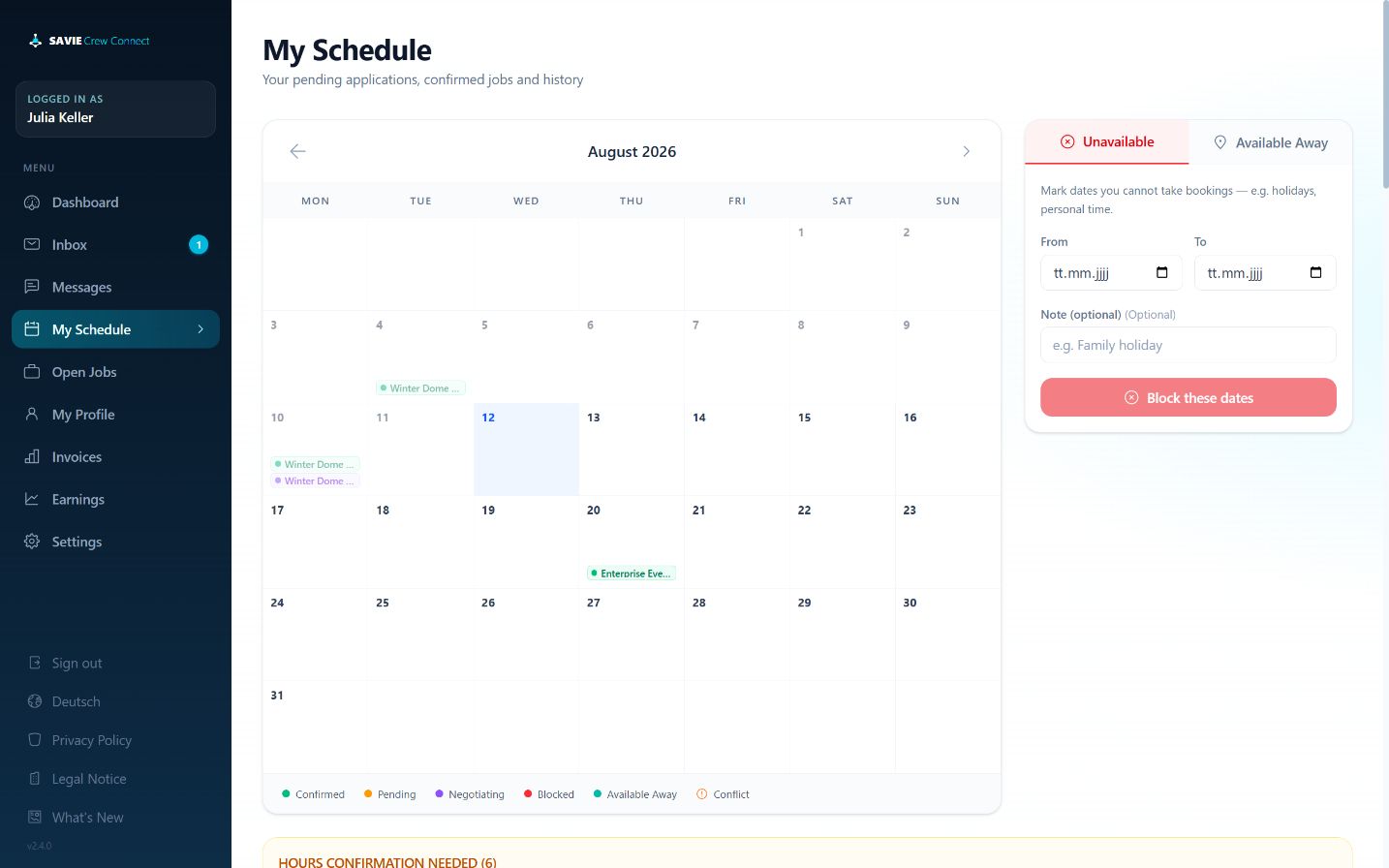
Freelancers maintain availability from My Schedule. SAVIE uses this information when identifying conflicts and recommending crew.
Calendar states
The calendar distinguishes confirmed, pending, negotiating, blocked, available-away, and conflict states.
Mark dates unavailable
Open My Schedule.
In the availability form, select Unavailable.
Choose From and To dates.
Add an optional note.
Select Block these dates.
Mark available away from home
Use this when you remain available but are temporarily based elsewhere.
Select the available-away option.
Choose From and To dates.
Enter the city and country.
Add an optional note.
Save the date range.
Location context helps dispatchers assess practical availability; it does not itself create or confirm a booking.
Conflicts
SAVIE identifies when an availability block overlaps a booking. Review the conflict and contact the dispatcher. Removing an availability block does not cancel an existing booking, and blocking a date does not automatically cancel one either.
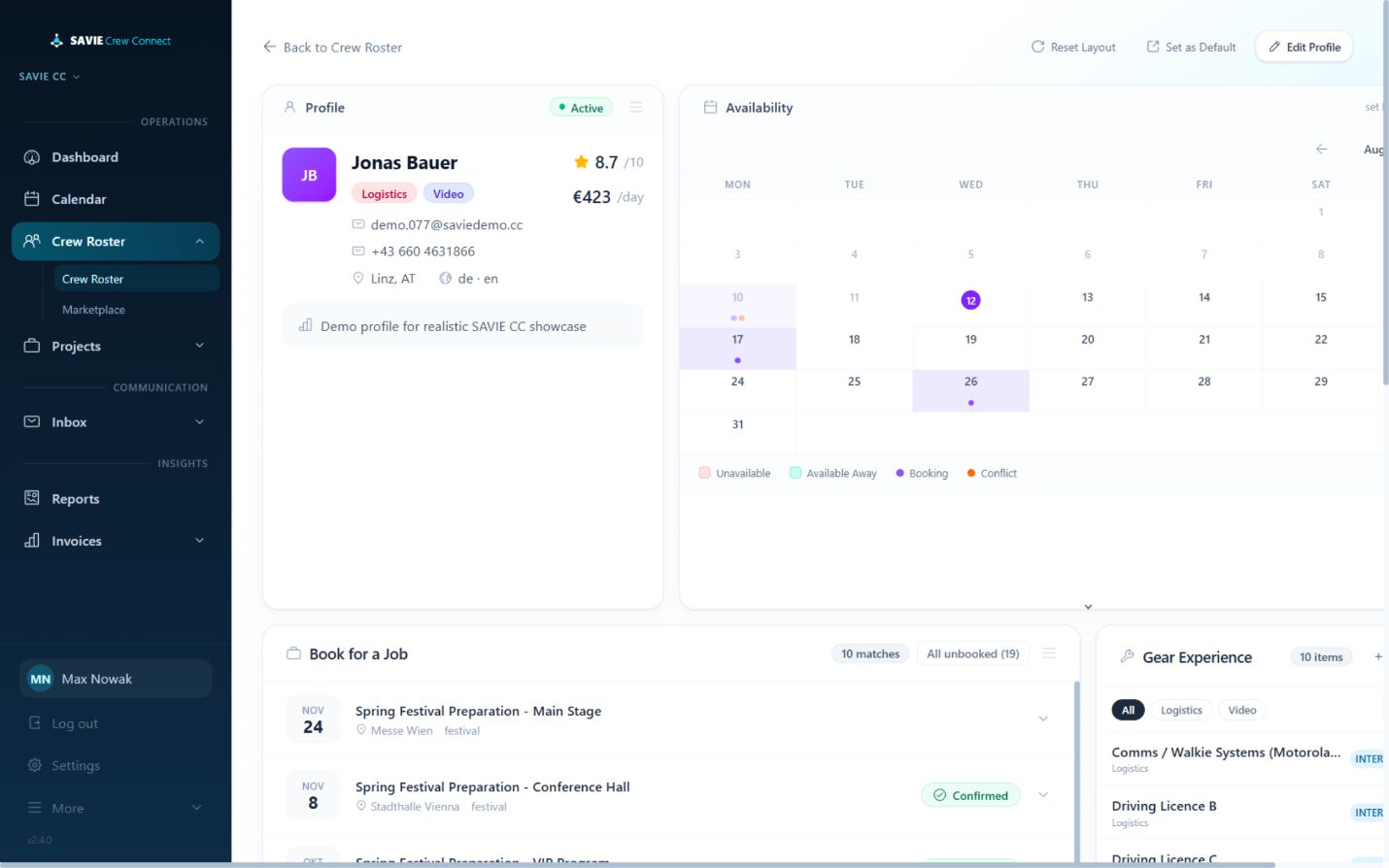
The full crew profile combines identity, availability, gear experience, matching opportunities, purchase-order readiness, and performance.
SAVIE crew profile
Profile header
The header shows active status, contact details, location, languages, rating, day rate, disciplines, and profile notes. Select Edit Profile to correct the member data.
Availability
The embedded calendar shows unavailable dates, available-away dates, bookings, and conflicts. Availability is normally maintained by the freelancer.
Gear Experience
Skills are organized by discipline and gear item. Each item has a proficiency:
Basic: introductory familiarity
Intermediate: capable with ordinary guidance or standard use
Verified work hours may appear beside a skill. Use Add Skill to extend the profile. Keep proficiency evidence-based because matching uses it when comparing the member with job requirements.
Book for a Job
This section lists unbooked job matches for the crew member. Existing confirmed assignments are identified. Open the intended job and confirm its role, time, location, and conflicts before sending a request.
Other profile areas
Purchase Orders shows confirmed bookings that can be bundled.
Performance summarizes the member’s operational history.
Portfolio presents show or project experience where available.
Reset Layout restores the profile panels; Set as Default saves the current arrangement as the preferred layout.
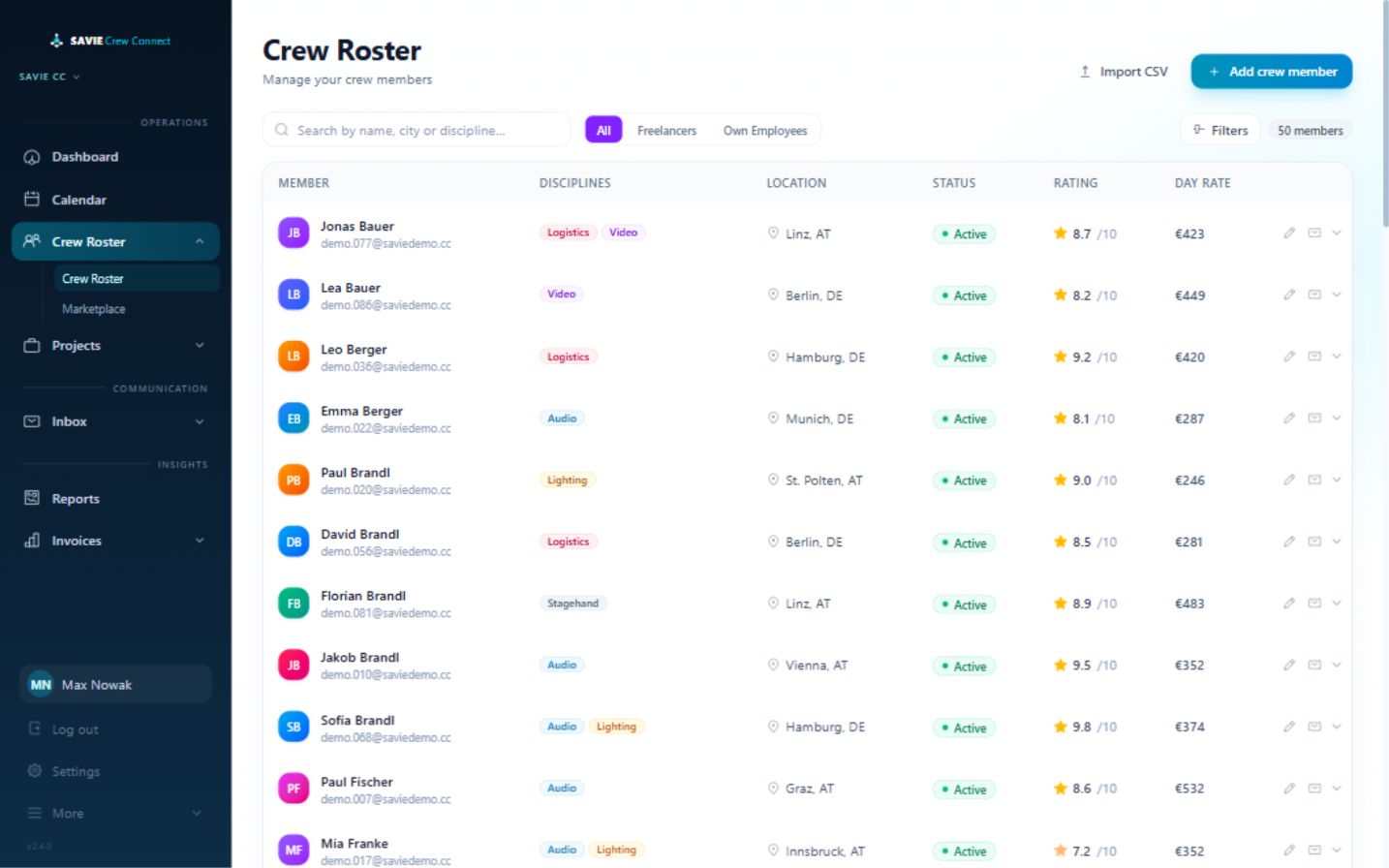
The Crew Roster is the workspace directory for freelancers and own employees.
SAVIE Crew Roster
Information shown
Each row can show the member’s name, email, disciplines, location, active status, rating, and day rate. Expand a row to review gear experience without leaving the list, or select View full profile for complete information.
Find and filter crew
Use search to find a member by identifying information.
Select All, Freelancers, or Own Employees.
Open Filters for status, discipline, country, gear, and minimum/maximum day rate.
Remove an individual filter from its filter tag or clear the filters.
Own employees are exclusive to the workspace. They are not displayed in the public marketplace and cannot be booked by another organization.
Common actions
Add crew member creates an individual profile.
Import CSV previews and imports multiple profiles.
The invitation action sends an active crew member a link to claim portal access. A sent indicator prevents accidental repeated invitations.
Row actions allow permitted users to edit or manage a member.
CSV import
Select Import CSV.
Download the sample if you do not already have a compatible file.
Upload a UTF-8, comma- or semicolon-delimited CSV of at most 10 MB.
Review the dry-run preview. Each row is labelled New, Update, or Skip.
Review unknown gear and subscription-limit warnings.
Select Import crew only after the preview is correct.
Core columns are first_name, last_name, email, phone, city, country, day_rate, and notes. Gear is supplied in gear_1 / gear_1_proficiency pairs. Valid proficiency values are basic, intermediate, advanced, and expert. Existing crew are matched by email and updated rather than duplicated. Unknown gear skills are skipped.
Crew
Freelancer profile, rates, and marketplace listing
Audience: freelancerReviewed: 2026-08-12
The freelancer profile is the reusable record behind matching, applications, and dispatcher review.
Profile and skills
Open My Profile to review contact and professional information, disciplines, gear experience, proficiency, portfolio material, and performance history. Skills use four levels: Basic, Intermediate, Advanced, and Expert.
Add a gear item only when the experience is accurate, choose the appropriate proficiency, and remove obsolete entries. SAVIE can surface gear inferred from work history as a discovery suggestion; the freelancer still confirms it before it becomes a stated skill.
Personal rate defaults
Open Settings > My Day Rates and enter rates by discipline and phase: setup/teardown or show operation. SAVIE uses the most specific matching value to prefill an application rate and falls back to the general day rate when needed. A prefilled value can still be reviewed before the application is submitted.
Marketplace listing
Eligible freelancers can manage a public headline, bio, rate visibility, and reliability-score visibility. Marketplace discovery is conditional on the feature being enabled, the freelancer's subscription being active, and the searching company having eligible access. The current interface presents the freelancer listing subscription at €4.99 per month.
An own employee cannot publish a marketplace listing. Their profile remains exclusive to the employer workspace.
Profile not found
If My Profile reports that no profile is linked, the crew login has not been connected to a roster profile correctly. Ask the workspace administrator to verify the crew record and resend or relink the invitation; do not create a second profile as a workaround.
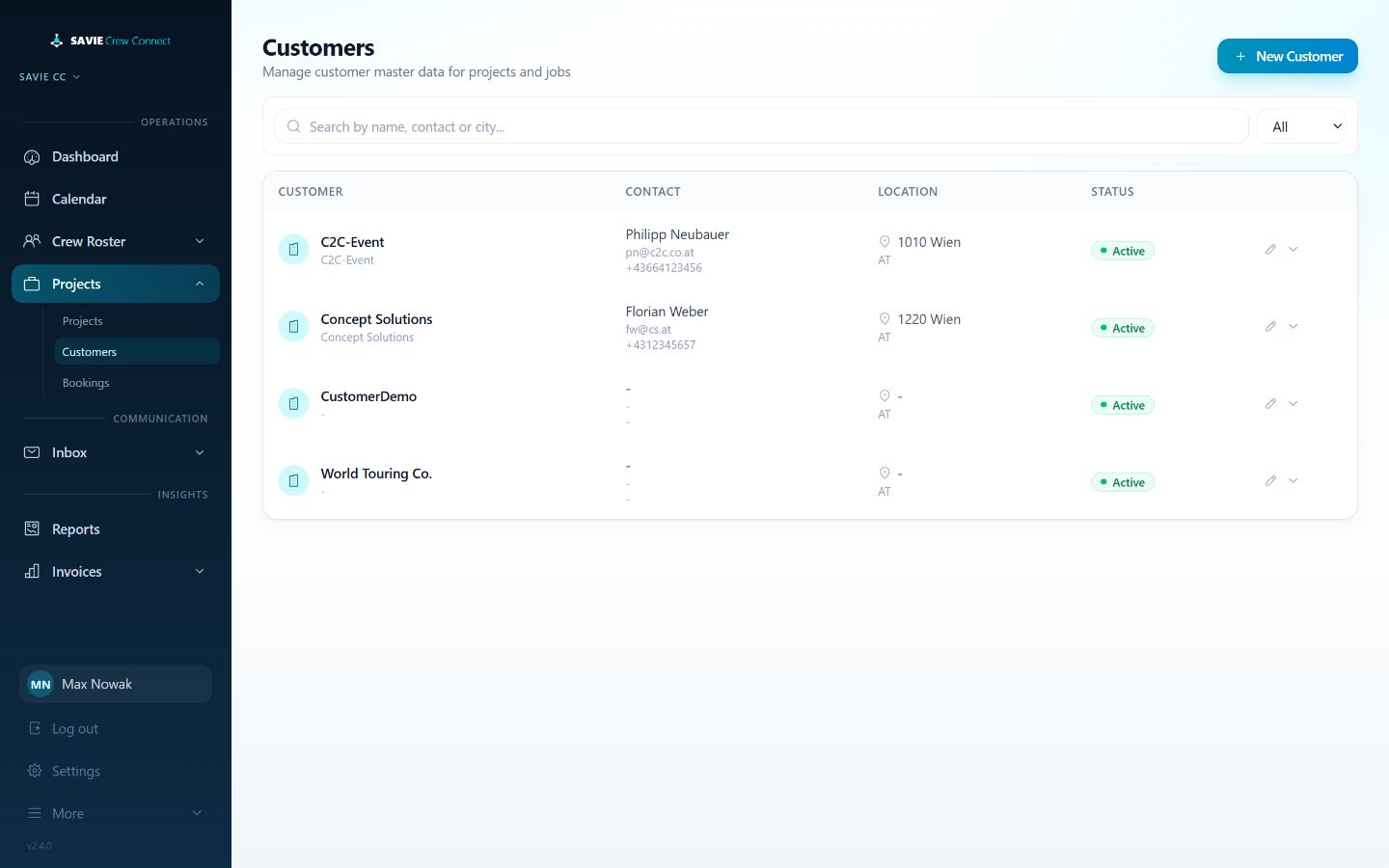
Customer master data gives projects and jobs a consistent commercial context.
SAVIE customer list
Customer list
Open Customers to search and filter All, Active, or Inactive customers. The list shows customer identity, contact, location, and status.
Create a customer
Select New Customer.
Enter the customer name. It is required.
Optionally enter billing name, contact name, email, phone, country, street, postal code, city, and notes.
Set the active state.
Save the customer.
Customer contact details can be personal data. Store business-relevant information only.
Use a customer in a project
Select an existing active customer while creating or editing a project. The project dialog can also create a minimal customer by name, but the Customers area is preferable when full billing/contact data is required.
Mark a customer inactive when it should no longer be selected for new work. Historical projects remain associated with the existing customer record.
A job is a specific staffing unit inside a project. It contains the venue, schedule, roles, quantities, phases, and gear requirements used for matching.
Create a job
Open a project and select New Job.
Enter the job title and optional description.
Select the project if it is not already preselected.
Select a configured venue or enter location information.
Enter start and end dates and select the event type.
Add at least the roles required for the job.
Save the job.
When a project already uses a consistent venue, SAVIE can prefill that venue for the new job. Always verify it before saving.
Configure a role
For every staffing requirement, specify:
Discipline and number of people
Setup / Teardown or Show Operation phase
Whether rate negotiation is allowed
Role date, start time, and end time
Optional role instructions
Relevant gear and minimum proficiency
Whether each gear requirement is required or optional
Roles can be duplicated, removed, or created in batches.
Multi-shift packages
Enable Multi-shift package when one requirement spans several dated shifts. Give the package a name, add each shift day and time, and specify whether the same crew member is required throughout.
Continuity packages
On the matching screen, related roles can be grouped so that one freelancer must accept the package together. Use this for genuine continuity requirements; it reduces flexibility because the same person must be suitable and available for the entire package.
Gear requirements
Choose gear from the selected discipline, set Basic, Intermediate, Advanced, or Expert, and mark it required or optional. Required items have a stronger gating effect in matching; optional items help rank otherwise suitable candidates.
Status lifecycle
Jobs normally move Draft → Negotiating → Confirmed. A draft, negotiating, or confirmed job can be cancelled according to its current transition options. Completed and Cancelled jobs have no ordinary forward planning transition.
Draft jobs can be deleted. Jobs with operational history should be cancelled so booking and audit history remain understandable.
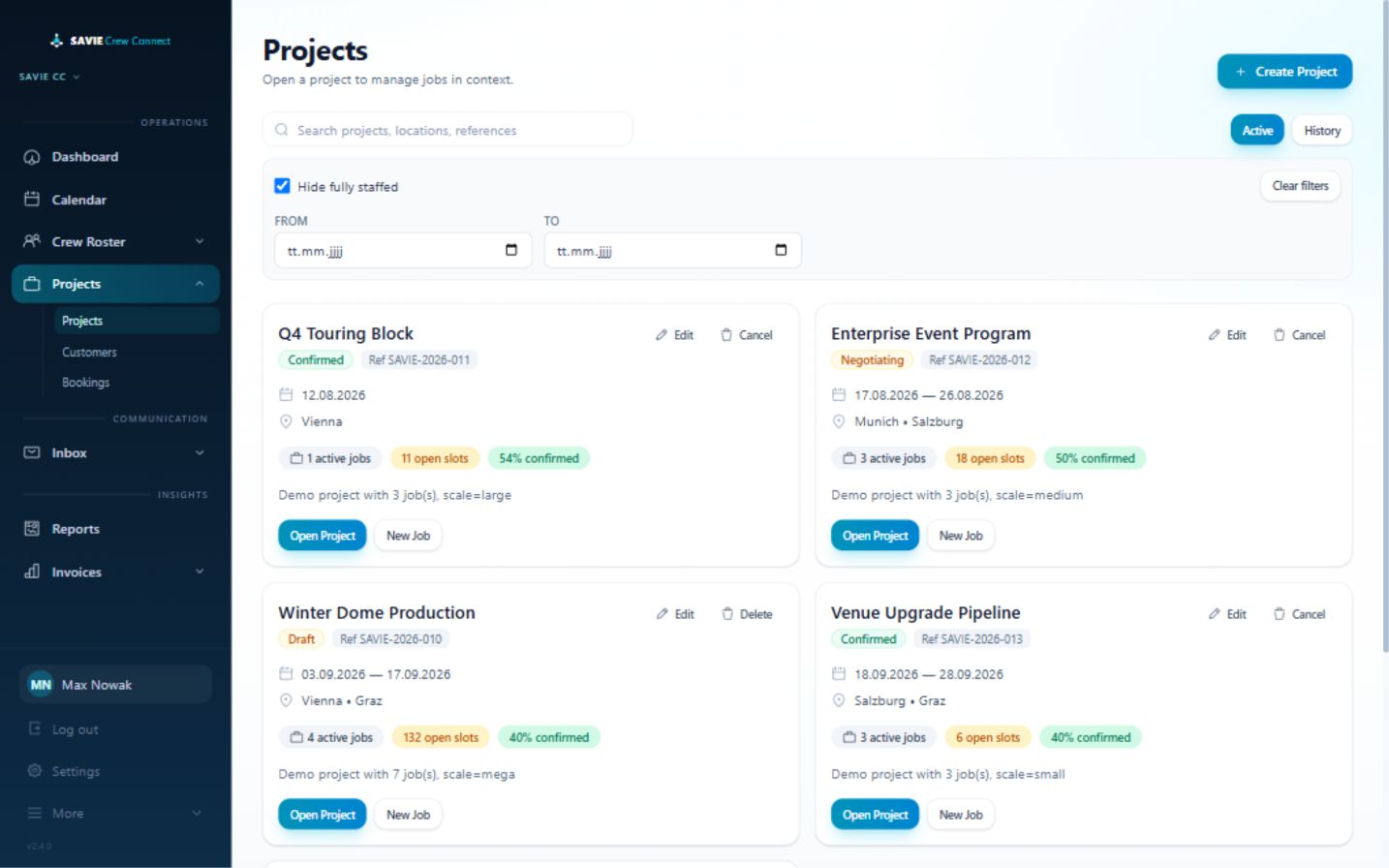
A project is the parent container for one or more related jobs.
SAVIE project list
Create a project
Open Projects and select Create Project.
Enter the project name.
Optionally enter an external reference and description.
Select an active customer, create a minimal customer by name, or leave the project without an assigned customer.
Choose Draft, Negotiating, Confirmed, or Cancelled.
Save the project.
Project list
Use Active for current planning and History for older work. Search, date filters, and Hide fully staffed narrow the list. Each project summarizes its date range, locations, active jobs, open positions, and confirmed percentage.
Use Open Project to manage its jobs or New Job to add another job inside that project.
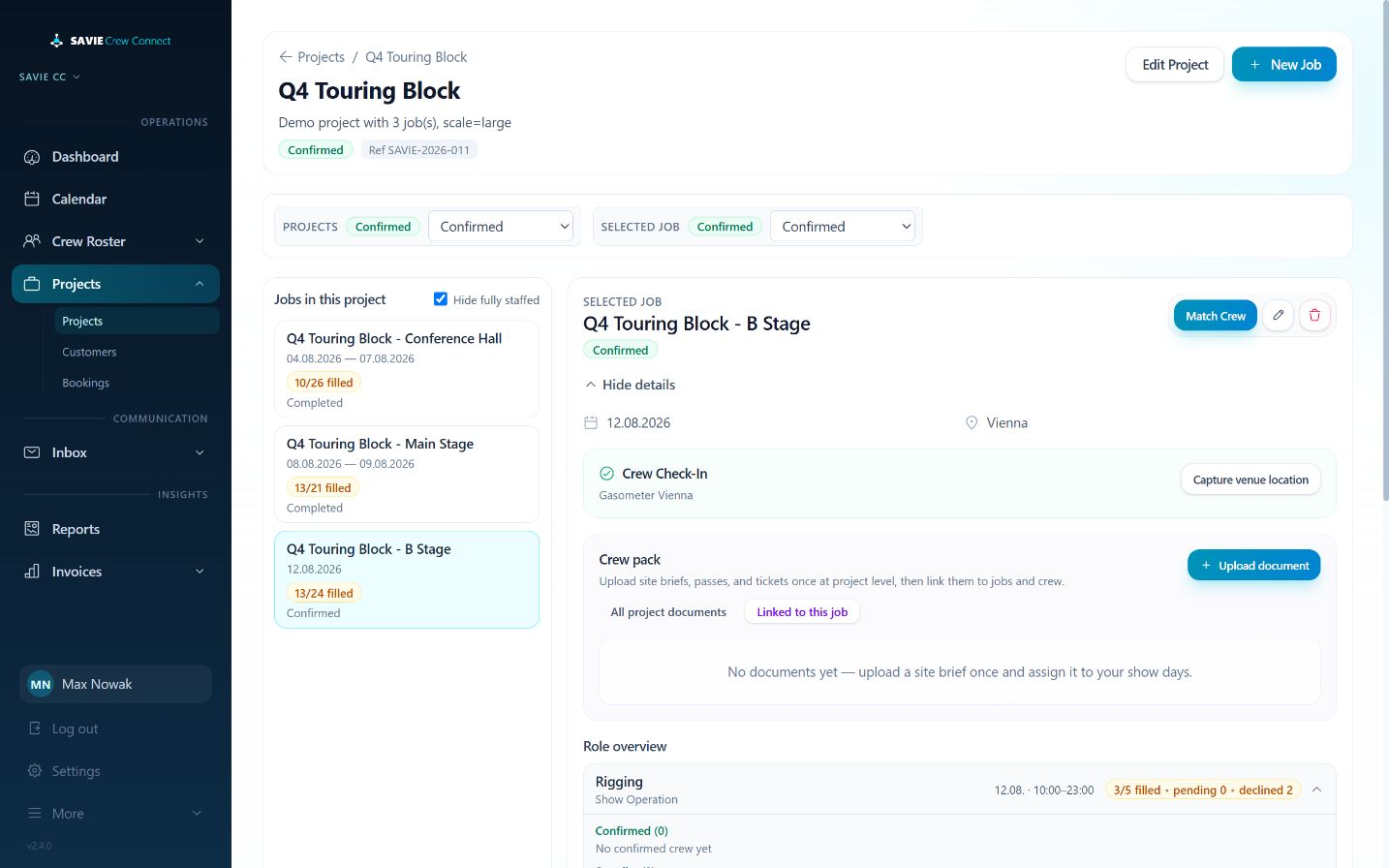
Project detail
SAVIE project detail
The detail page provides:
Project status, reference, description, and edit action
All jobs belonging to the project
The selected job’s status and staffing totals
Role-level confirmed, standby, requested/negotiating, and declined/cancelled bookings
Project-level crew-pack documents that can be linked to jobs and crew
Crew check-in controls when configured
Direct access to Match Crew
Status lifecycle
The normal sequence is Draft → Negotiating → Confirmed. Confirmed projects can be cancelled. Completed projects can move to Paid. Completed, Paid, and Cancelled are terminal or controlled lifecycle states rather than ordinary editable planning states.
Deleting is reserved for draft work. Once operational history exists, SAVIE uses cancellation to preserve the record.
Cancelled: assignments or requests cancelled after creation
Expired requests can appear in contextual history even though they do not have a separate top-level tab.
Understand who initiated the booking
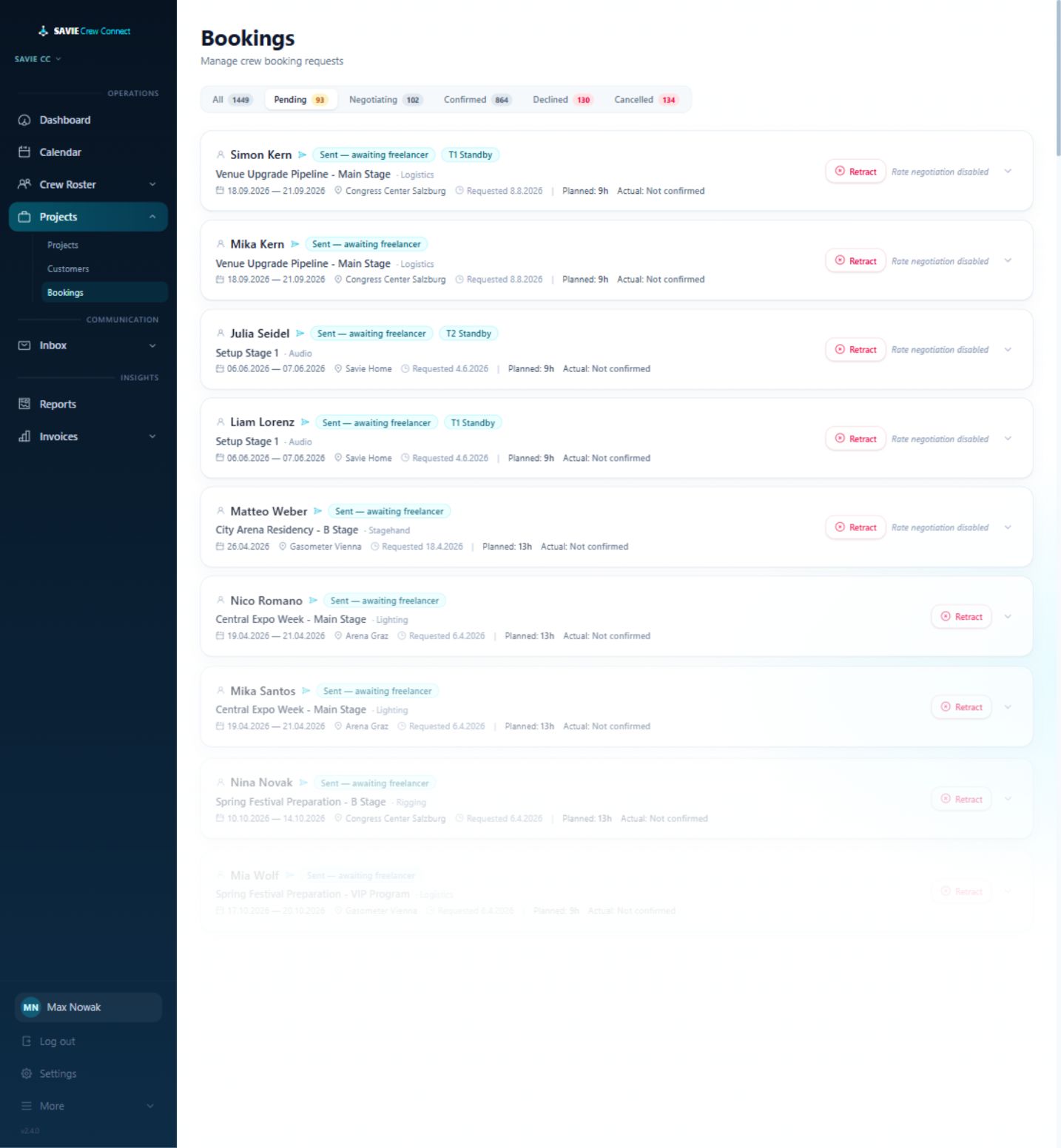
Sent — awaiting freelancer means a dispatcher sent the request.
Applied — awaiting your approval means the freelancer initiated it from Open Jobs.
For an application, verify the role, remaining capacity, fit, and proposed rate before selecting Approve, Decline, or Counter.
Booking detail
Expand a booking to review job and crew details, role, notes, match information, rate history, planned hours, actual hours, variance, standby tier, and activation state where applicable.
Cancellation
Retracting an unanswered request cancels the request.
Cancelling a confirmed booking preserves the history and notifies the affected party.
Cancelling a confirmed primary booking can initiate standby escalation when a suitable standby exists.
If an integration is configured, confirmed, declined, and applicable cancelled states may be written back in the background. A SAVIE booking remains valid even if a best-effort external write-back reports a separate problem.
Matching and booking
Respond to booking requests
Audience: freelancerReviewed: 2026-08-12
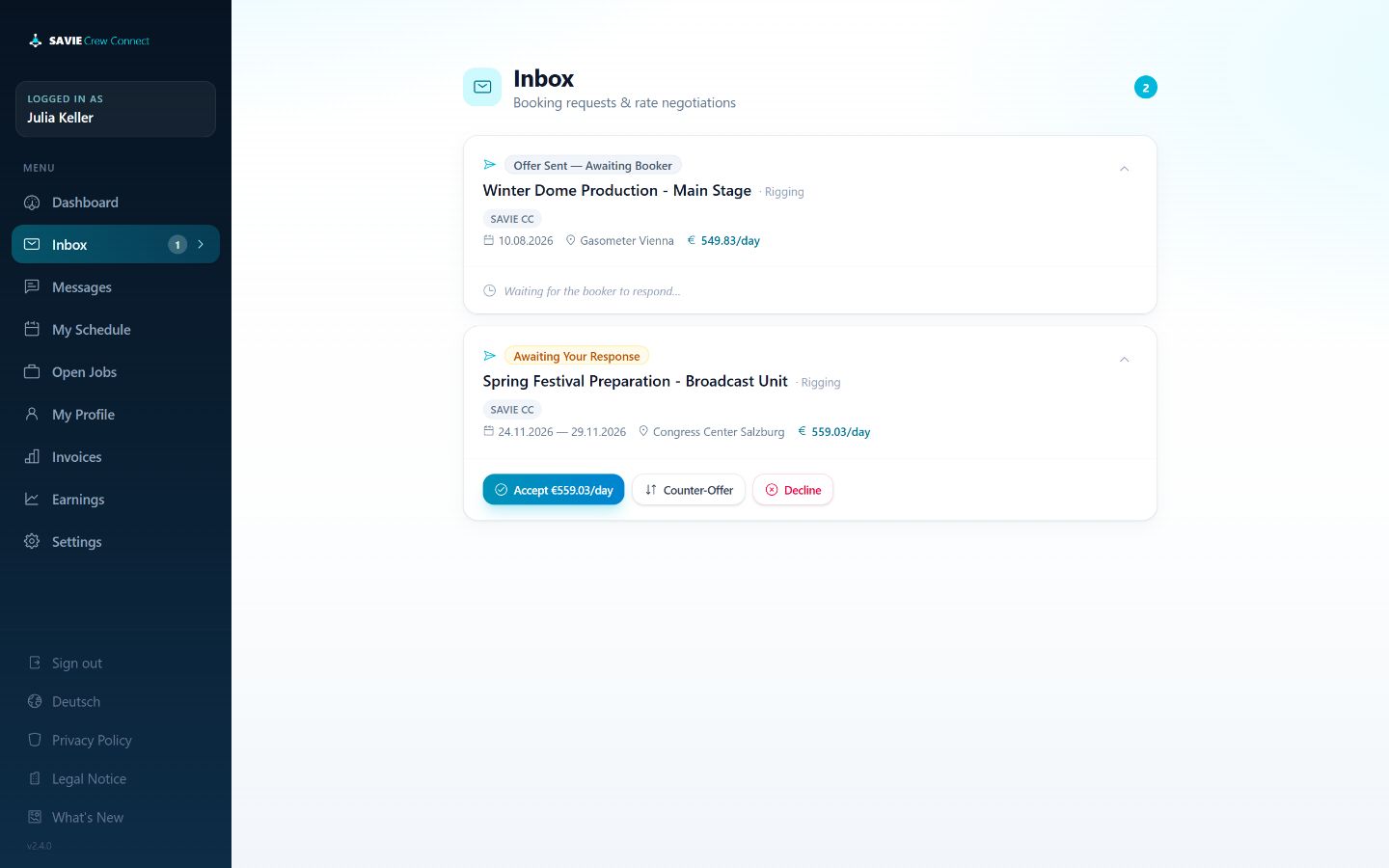
The freelancer Inbox separates items awaiting the freelancer from offers already sent back to the dispatcher.
SAVIE freelancer booking inbox
Review a request
Before responding, confirm the organization, project/job, role, date range, location, offered rate, notes, and any multi-role or multi-shift package.
Accept
Select Accept [rate]/day to confirm the assignment at the current rate. The booking moves to Confirmed and appears under upcoming work in My Schedule.
SAVIE checks for overlapping confirmed work. Confirming a booking also cancels the freelancer’s other requested or negotiating primary bookings that overlap the newly confirmed job.
Counter-offer
Select Counter-Offer, enter the proposed rate and an optional note, and send it. The item moves into negotiation and shows that the booker must respond.
Counter-offers are unavailable when the dispatcher disabled rate negotiation for the role or when the crew member is an own employee.
Decline
Select Decline when the work cannot be accepted. The status and response are recorded for the dispatcher. Declining one ordinary request does not affect unrelated bookings; a grouped continuity package is handled together.
Cancel confirmed work
Confirmed upcoming bookings include Cancel booking in My Schedule. Use it only when the assignment can no longer be fulfilled and contact the dispatcher immediately. Cancellation can trigger standby replacement handling.
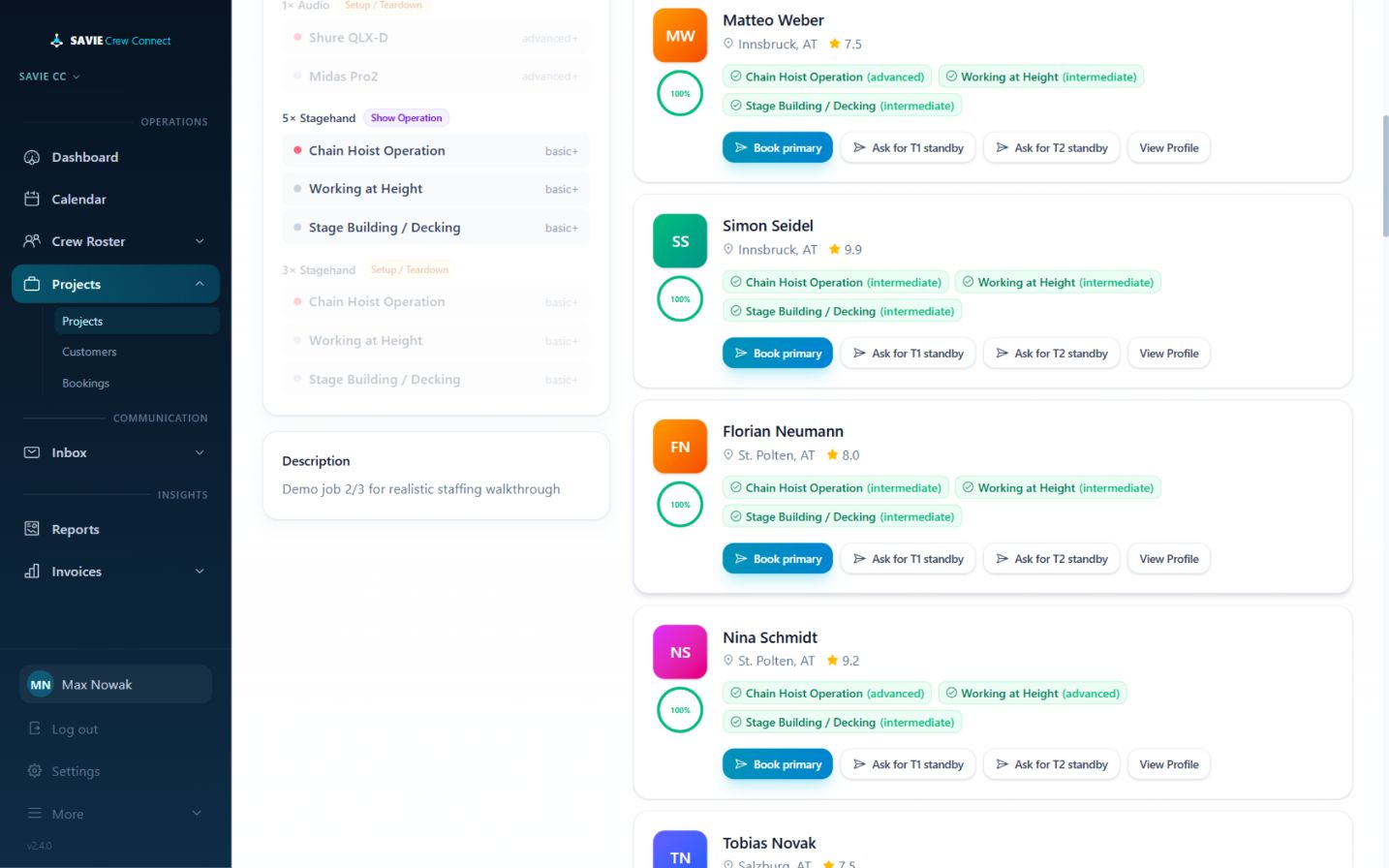
SAVIE compares an open role with active crew in the workspace and presents a ranked shortlist for human review.
Ranked SAVIE crew recommendations
Open matching
Open the project and selected job.
Select Match Crew.
Select a specific open role. Matching a particular role gives the most useful result because its discipline, date, time, and gear requirements are known.
Review the role requirements in the left panel and the candidate groups on the right.
Candidate groups
Gear Match: the member has the role discipline and meets all mandatory gear requirements at or above the requested proficiency.
Discipline: the member has relevant discipline experience but is missing at least one mandatory gear requirement.
Other Crew: the member does not match the role discipline.
Use the group filters to concentrate on the appropriate shortlist. Hide already requested removes candidates already involved in this role’s booking process. Show denied reveals declined, expired, or cancelled requests when they are needed for context.
Match score
Mandatory gear matches receive full weight; optional gear matches receive half weight. A small reliability adjustment helps order otherwise similar results. The score is capped at 100%.
A high percentage is not a guarantee of suitability. Check the role dates, location, rate, profile, and operational context before making a request.
Availability and exclusions
The matching list excludes crew who already have an active primary request, negotiation, or confirmed booking for the same role or an overlapping job. It also excludes unavailable date blocks. This reduces scheduling collisions, but the dispatcher remains responsible for the final decision.
Review a candidate
For each candidate, inspect:
Match group and score
Location and reliability rating
Which requirements were matched and at what proficiency
Which mandatory requirements are missing
Existing request status, if shown
Full crew profile
Primary and standby requests
Book primary sends the normal staffing request.
Ask for T1 standby requests first-tier backup availability.
Ask for T2 standby requests a secondary backup.
Standby is not a confirmed primary assignment. Its activation and release state must be monitored separately.
Human decision-making
SAVIE’s ranking is a recommendation. It does not automatically confirm, reject, or assign a person. A dispatcher selects the candidate and the recipient accepts or declines the request.
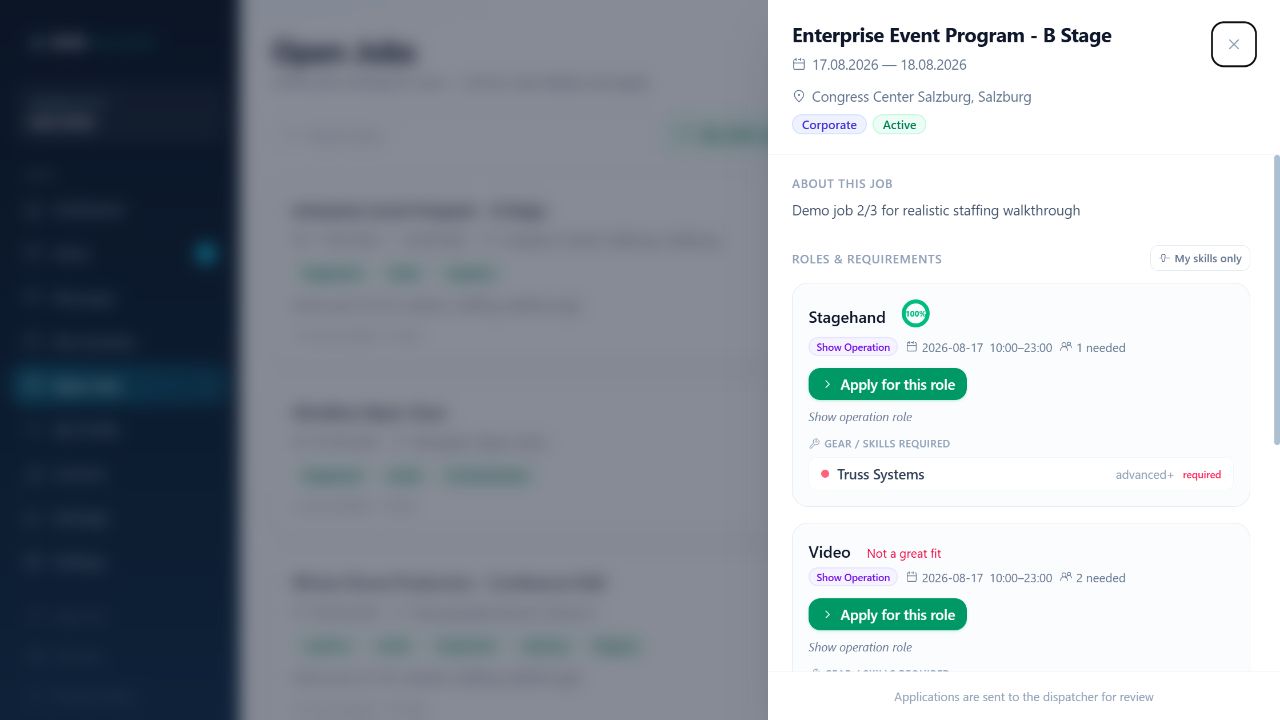
Freelancers can discover active jobs that still need crew and apply to a specific role.
Open job details and role fit
Find a role
Open Open Jobs.
Search by visible job information or enable My skills only.
Open a job to review its dates, location, description, staffing progress, roles, phases, call times, and requirements.
Review the fit percentage and every mandatory gear warning.
The skills-only view is a convenience filter, not a guarantee of suitability. SAVIE shows when mandatory gear is missing, but the freelancer remains responsible for applying only to work they can perform.
Apply
Select Apply for this role.
Review the rate. SAVIE first uses the personal discipline-and-phase rate, then the general day rate if no specific value exists.
Confirm the application.
The result is a requested booking sent to the dispatcher for review. It is not a confirmed job. An overlap conflict can prevent the application, and an already requested or confirmed role shows its current booking state. A previously declined or cancelled application can be submitted again while the role remains available.
Dispatcher handling
Freelancer-initiated applications enter the dispatcher inbox and booking flow. The dispatcher reviews fit, availability, requirements, and rate before confirming, negotiating, declining, or retaining the request.
When rate negotiation is enabled, dispatcher and freelancer can exchange counteroffers until one side accepts or closes the booking.
Negotiation lifecycle
The initiating side proposes a rate.
The other side selects Accept/Approve, Decline, or Counter.
A counteroffer records the sender, amount, optional note, and time.
The booking remains Negotiating while the latest offer awaits a response.
Acceptance confirms the booking at the agreed quoted rate.
The booking detail shows the chronological Rate History and identifies the latest offer.
Dispatcher workflow
Use Inbox for the concise action queue or Bookings → Negotiating for the complete record. Enter a numeric counter rate and optional note, then select Send Counter-Offer.
Freelancer workflow
Use Inbox. Awaiting Your Response means the booker sent the latest offer; Offer Sent — Awaiting Booker means no action is required until the dispatcher responds.
Closed bookings
Confirmed, declined, and cancelled bookings cannot continue negotiation. If a new commercial agreement is needed after closure, coordinate with the dispatcher rather than trying to reuse a closed rate history.
These optional controls keep unanswered requests and backup staffing from remaining ambiguous.
Request reminders and expiry
Administrators configure the behavior in Settings → Booking Policies.
The policy is off by default.
The reminder interval determines when an unanswered primary request receives a reminder.
The expiry interval determines when an unanswered request is automatically closed.
Current defaults in the configuration model are 24 hours for reminders and 72 hours for expiry, but the workspace settings are authoritative.
An expired request is historical, not confirmed, and no longer blocks capacity as an active booking.
Requests can also expire when the relevant role has reached its required number of confirmed primary crew.
Standby tiers
Dispatchers can ask a candidate for T1 or T2 standby instead of a primary booking. Standby records have a separate activation state: no activation, offered, accepted, declined, expired, or released.
If a confirmed primary booking is cancelled, SAVIE can cascade into standby handling. A standby person becomes the active primary assignment only through the activation workflow; standby acceptance alone must not be interpreted as the original primary confirmation.
Monitoring
Use booking detail to check the standby tier and activation state. Contact the person directly when timing is critical; automated status does not replace clear operational communication.
A booking request asks a selected crew member to accept a role at a proposed rate.
Send from matching
Select the intended role on the matching page.
Review a candidate’s skills, location, rating, and profile.
Select Book primary or the required standby tier.
Confirm the role and crew member in the rate dialog.
Enter or verify the day rate. SAVIE can prefill the workspace standard rate; the crew member’s day rate is a fallback when no standard rate is available.
Send the booking.
The booking appears as Requested / Pending and the crew member receives the corresponding portal and email notification, subject to their notification preferences and configured email delivery.
Rate negotiation setting
Each role can allow or prohibit rate negotiation. If negotiation is disabled, the recipient can accept or decline the offered rate but cannot counter it. Own employees do not use freelancer rate negotiation.
Retract an unanswered request
Open Bookings → Pending and select Retract. This cancels the open request. Do not retract a request that the crew member is currently discussing without coordinating with them.
Duplicate and capacity safeguards
SAVIE prevents useful duplicate active requests for the same crew/role context. When a role reaches its required number of primary confirmations, remaining requested or negotiating candidates for that filled role can expire because they are no longer needed.
Booking a continuity package
When roles belong to a continuity package, the request is grouped. The crew member accepts, declines, negotiates, or cancels the package together rather than responding independently to each grouped role.
Crew check-in gives the project team a live view of who is on site. It is available to confirmed primary crew from one hour before their role's call time.
Configuration
Administrators manage saved venues and the organization's default check-in radius in Settings. A job can inherit the saved venue coordinates and radius, or use its own check-in location. The minimum radius accepted by the settings workflow is 25 metres; the product default is 250 metres.
Geo-fencing is optional. When it is enabled and the job has coordinates, SAVIE compares the one-time location supplied at check-in with the configured radius.
Freelancer procedure
Open the confirmed booking in My Schedule.
When the check-in window opens, select the check-in action.
Allow a one-time location reading, or use the manual fallback.
If the reported position is outside the radius, add the required note.
Confirm the check-in.
A check-in is recorded as on site, outside radius, or manual, together with its time and available distance or note. It is a one-shot attendance record, not continuous location tracking.
Dispatcher tracker
The selected job's project detail shows confirmed primary crew and summarizes on-site, missing, late, outside-radius, and manual check-ins. A dispatcher can also set the job's check-in position from their current location when preparing the job.
The crew pack distributes project documents to the confirmed primary crew who need them. It also supplies an in-app call sheet with the date, venue, role, and call times.
Dispatcher procedure
Open a project and select a job.
In Crew pack, select Upload.
Enter a title and choose a category: site brief, health and safety induction, parking pass, catering ticket, wristband, or other.
Upload a PDF, PNG, JPEG, or WebP file.
Link the document to one or more jobs in the project.
Make it available to all confirmed primary crew on those jobs, or restrict it to selected confirmed crew members.
Add optional notes and save.
The project view can show all project documents or only those linked to the selected job. Dispatchers can download, edit, or delete an existing document.
Freelancer access
Confirmed primary crew open My Schedule, expand the booking, and open the crew pack. Image passes can be previewed; PDFs and other supported files can be opened or downloaded.
Access is booking-based. A freelancer sees only documents linked to a job on which they have a confirmed primary booking and, when an audience restriction exists, only documents assigned to them.
Actual-hours confirmation connects completed work to accurate operational review and invoicing.
SAVIE freelancer schedule
Freelancer procedure
Open My Schedule.
Find Hours Confirmation Needed.
Review the planned time and select Confirm hours.
Enter the actual start and end time.
Confirm the values.
SAVIE calculates actual hours from the time range, including shifts that cross midnight. The confirmed time, hours, timestamp, and confirming party are stored with the booking.
Dispatcher review
The Bookings detail compares Planned and Actual and displays the variance. The dispatcher dashboard highlights confirmed bookings where the difference needs attention.
Review the difference before dismissing its dashboard alert. Dismissing the alert acknowledges the operational notification; it does not change the recorded hours.
Invoice readiness
A booking is ready for freelancer invoicing only when it is Confirmed and actual hours have been confirmed. One invoice can later include several eligible bookings.
Corrections
If the confirmed time is wrong, coordinate with the dispatcher before invoicing or payment. Do not compensate for an incorrect time by entering an unrelated rate or invoice amount.
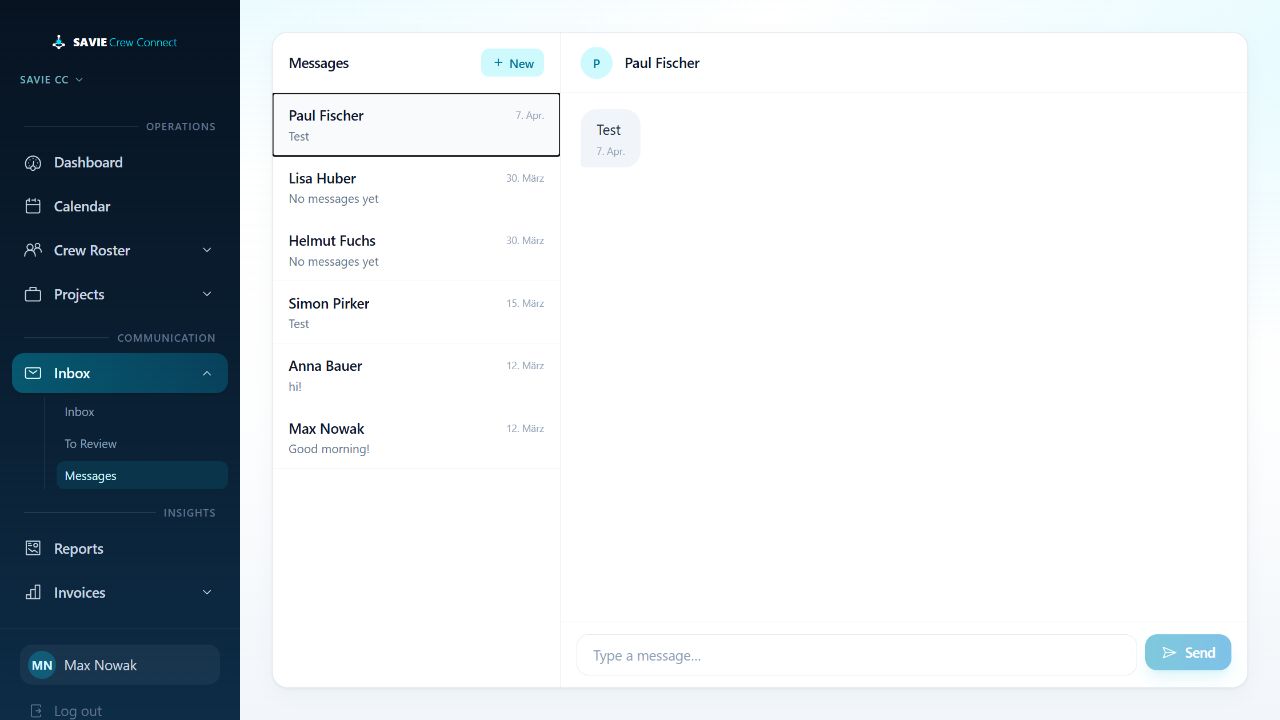
Messages provide direct, in-product conversations between dispatchers and crew.
Dispatcher messages
Dispatcher procedure
Open Inbox > Messages.
Select an existing conversation, or select New and choose a crew member.
Review the conversation history.
Enter a message and select Send.
Freelancer procedure
Open Messages, select the relevant dispatcher conversation, enter a reply, and send it. Conversations remain available in the participant's message list.
Operational guidance
Use messages for coordination that belongs with the working relationship. A message does not accept a booking, confirm a rate, change hours, or cancel work; use the relevant booking action for those state changes.
Completed bookings that are ready for feedback appear under Inbox > To Review.
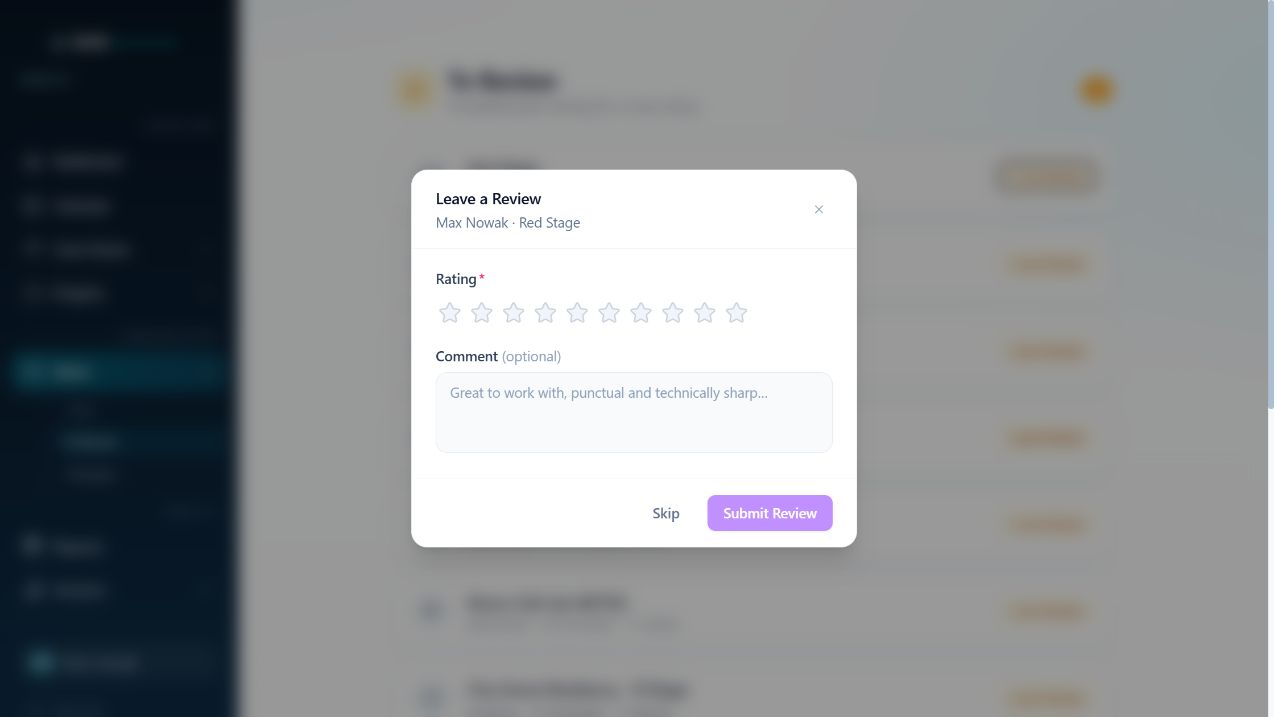
Leave a review
Procedure
Open To Review.
Locate the booking by job, crew member, date, or location.
Select Leave Review.
Choose a required rating from 1 to 10.
Add an optional work-related comment.
Select Submit Review.
The rating labels range from poor to excellent. Submitted reviews contribute to the crew member's performance history and displayed rating.
Important behavior
Reviews are immutable after submission: there is no edit workflow. They can be deleted where the user has the required access. Check the selected booking, rating, and comment carefully before submitting.
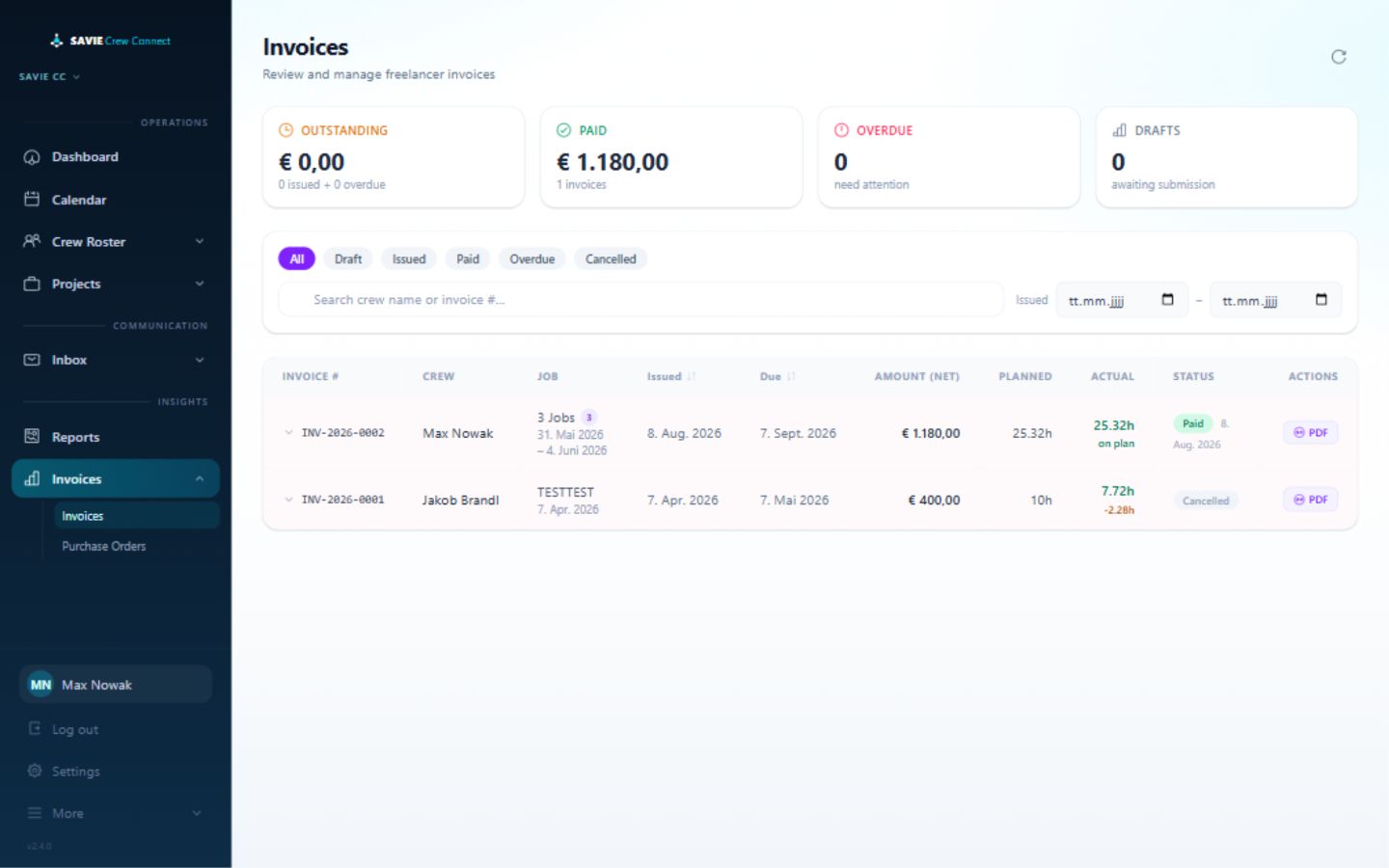
The Invoices area is the workspace's operational view of freelancer invoices.
Dispatcher invoices
Review an invoice
Open Invoices.
Filter or search by status, crew member, dates, invoice number, or job.
Open the invoice and review its booking lines, confirmed hours, amounts, dates, notes, and any uploaded PDF.
Compare each line with the corresponding booking before changing the status.
Record the correct next state, such as paid or cancelled.
Consolidated invoices show every covered job as an itemized line even though the freelancer submitted one invoice total. Reporting and spend attribution remain booking-based underneath the consolidated header.
Control points
An invoice record is not a substitute for correcting inaccurate booking hours. Resolve time or rate discrepancies in the booking workflow, keep the invoice status aligned with the real payment state, and treat uploaded PDFs as financial documents with restricted access.
Finance and insights
Freelancer invoices and earnings
Audience: freelancerReviewed: 2026-08-12
A confirmed booking becomes invoiceable after its actual hours have been confirmed and it has not already been included in an invoice.
Create an invoice
Open Invoices.
Select one or more bookings in Ready to invoice.
Choose the action to invoice the selected booking or bundle the selection.
Review the prefilled net amount and enter the invoice and due dates.
Add optional notes and, if required, attach a PDF invoice.
Submit the invoice.
SAVIE creates the record and issues it to the workspace. A consolidated invoice can contain any number of eligible bookings; each booking remains a separate line for the dispatcher and for reporting.
Invoice states
Draft has not been issued.
Issued has been submitted and awaits payment.
Paid has a recorded payment date.
Overdue is past its due date without payment.
Cancelled is retained but no longer payable.
Draft invoices can be deleted. An uploaded PDF can be opened from the invoice record, and a PDF can also be attached later where the interface permits.
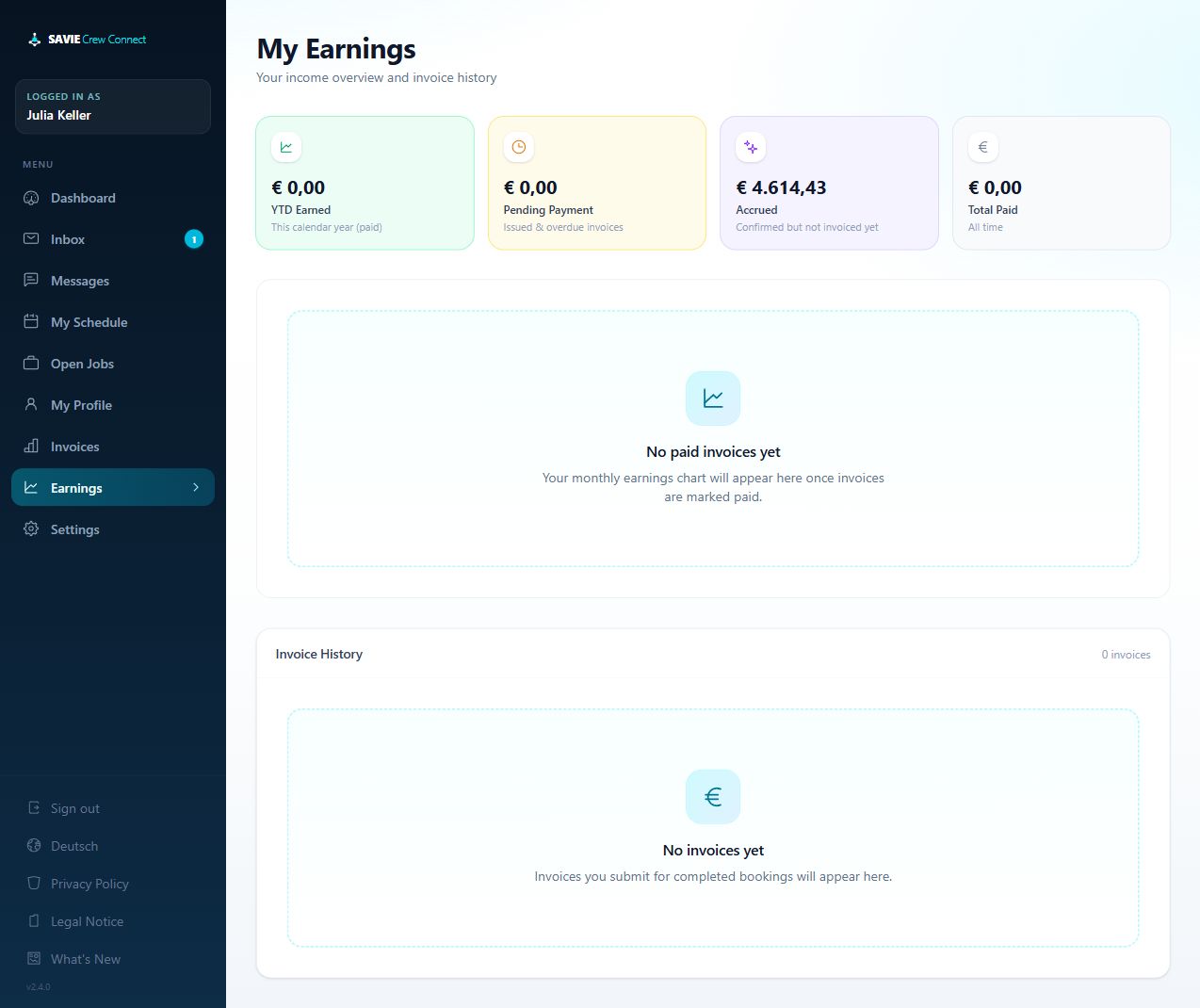
Earnings
Freelancer earnings
Earnings separates year-to-date paid income, pending payment, confirmed work that has accrued but is not yet invoiced, and all-time paid income. Monthly paid income and the invoice history appear once paid invoices exist.
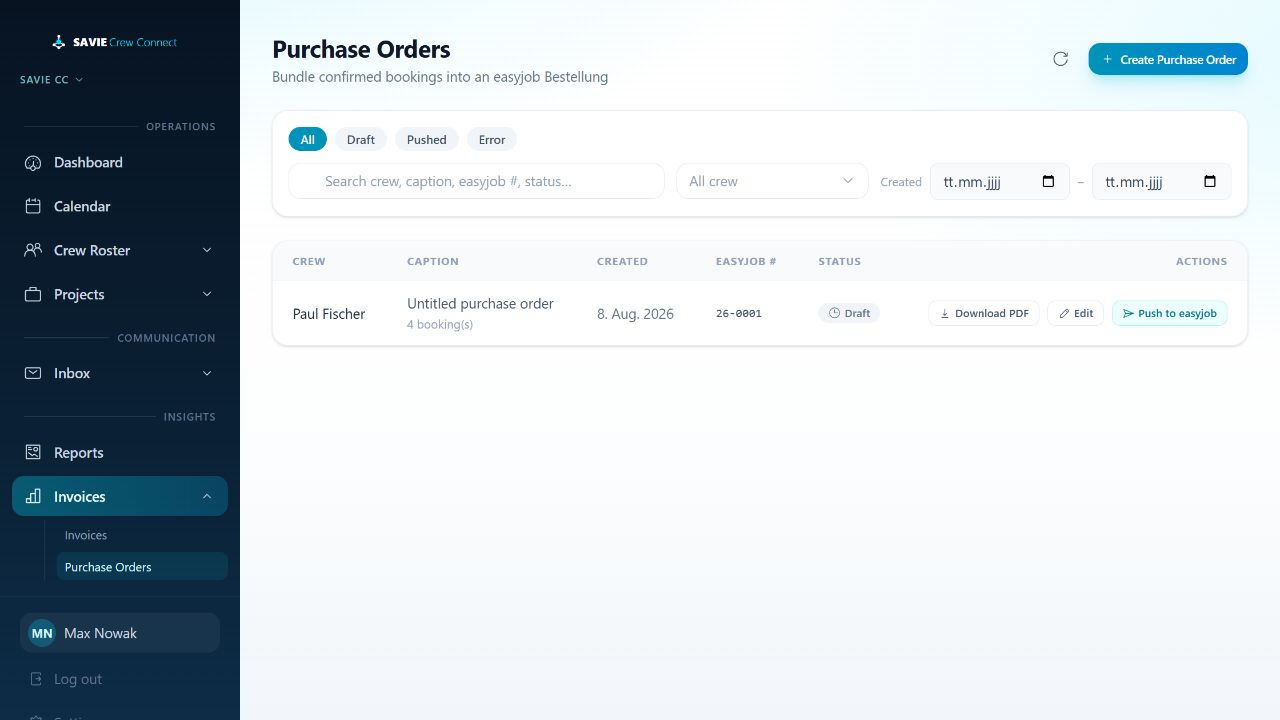
Purchase orders bundle confirmed bookings for one crew member into a document that can be downloaded as PDF and, when configured, pushed to easyjob.
Purchase orders
Create and manage
Open Invoices > Purchase Orders.
Select Create Purchase Order.
Choose a crew member and the eligible confirmed booking lines.
Add or review the caption and line details, then save the draft.
Download the PDF for review.
If the easyjob integration is configured, select Push to easyjob.
The list can be searched and filtered by crew member, creation date, and status. Draft and failed orders can be edited and retried.
Statuses
Draft exists in SAVIE and can still be edited.
Pushed was transferred to easyjob.
Error records a failed transfer and displays the available error detail.
The easyjob push is conditional on the workspace plan, connection, import configuration, and a valid SAVIE address in easyjob. Creating or downloading a SAVIE purchase order does not by itself prove that an ERP transfer succeeded.
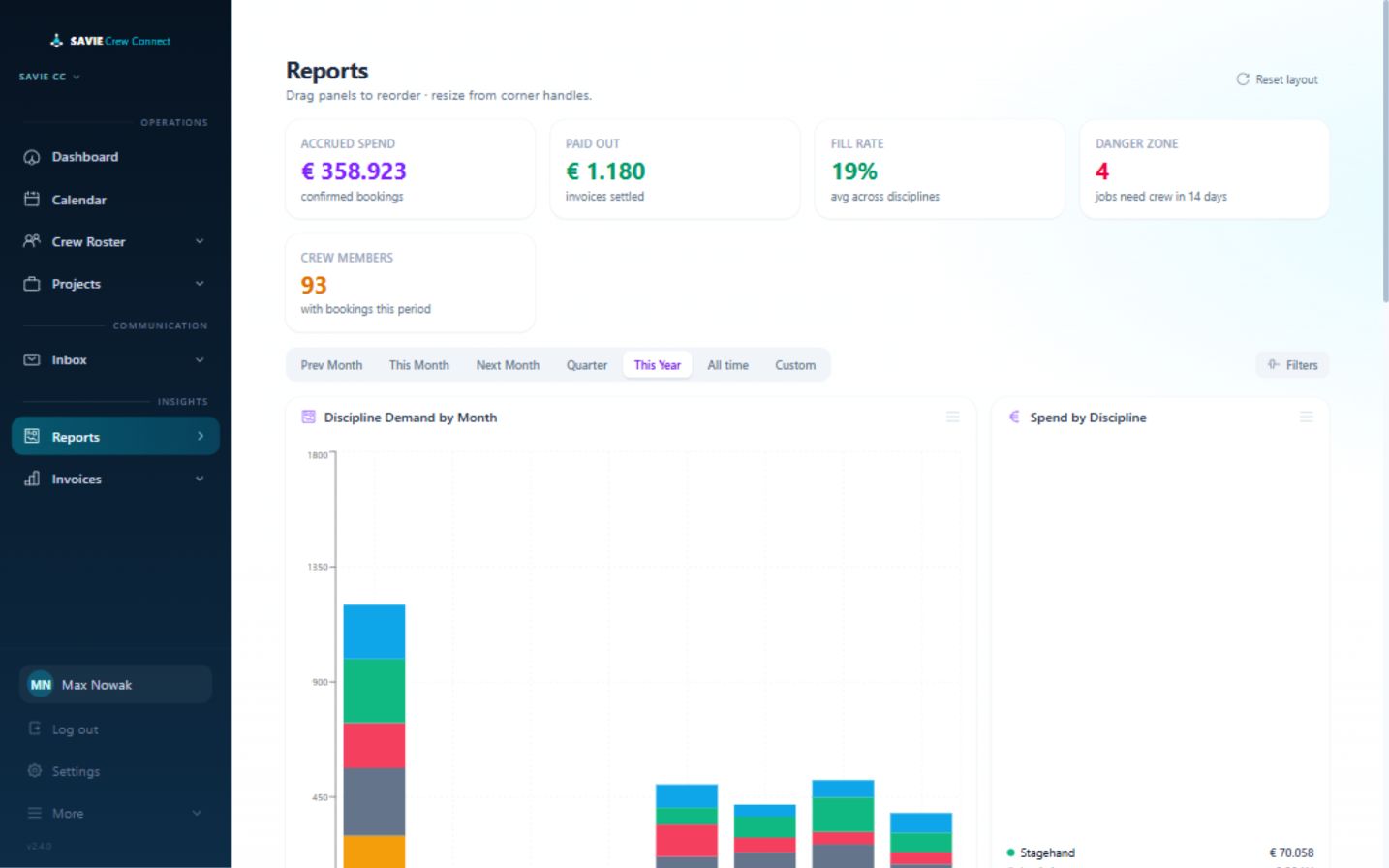
Reports turn workspace activity into operational and financial indicators.
SAVIE reports
Use the report dashboard
Open Reports.
Select the reporting period or custom date range.
Apply the available filters for the question being investigated.
Review the summary cards and supporting charts or lists.
Drag or resize report widgets to arrange the dashboard.
Use the reset action to restore the default layout.
The available cards cover areas such as fill rate, demand, spend, hard-to-fill roles, operational risk, and crew performance. Figures are scoped to the active workspace and the selected period.
Interpretation
Use reports as decision support, then open the underlying projects, bookings, crew profiles, or invoices before acting. A low fill rate, spend change, or danger-zone indication summarizes operational records; it does not explain the cause on its own.
Integrations connect SAVIE with external planning systems. They are conditional features: visibility and use can depend on the deployed build, subscription plan, workspace role, and customer configuration.
easyjob WebAPI
easyjob integration is a Pro and Scale feature. An authorized user can store an encrypted connection, test it, configure the SAVIE contact address and import scope, run a sync, inspect recent sync history, manage remembered gear mappings, and set the purchase-order reference prefix.
Two import scopes are supported:
SAVIE-managed roles only limits import to relevant allocations assigned to the SAVIE address.
All resource allocations also brings in staff planning for broader pre-planning; cancelled allocations and non-staff resources are excluded.
Confirmed booking changes can participate in write-back, and purchase orders can be pushed when the target easyjob data is ready. Read every sync or push result: a SAVIE-side booking can remain valid even when there is not yet a corresponding easyjob allocation to update.
Eventworx
The settings interface can expose an Eventworx connection for job and crew booking synchronization. Treat it as available only when enabled and configured for the customer environment.
Security and governance
Never place integration passwords or tokens in handbook screenshots, messages, or support tickets. Connection secrets are entered only in the protected settings form and stored encrypted at rest. Agree the import scope and data controller responsibilities before enabling a customer integration.
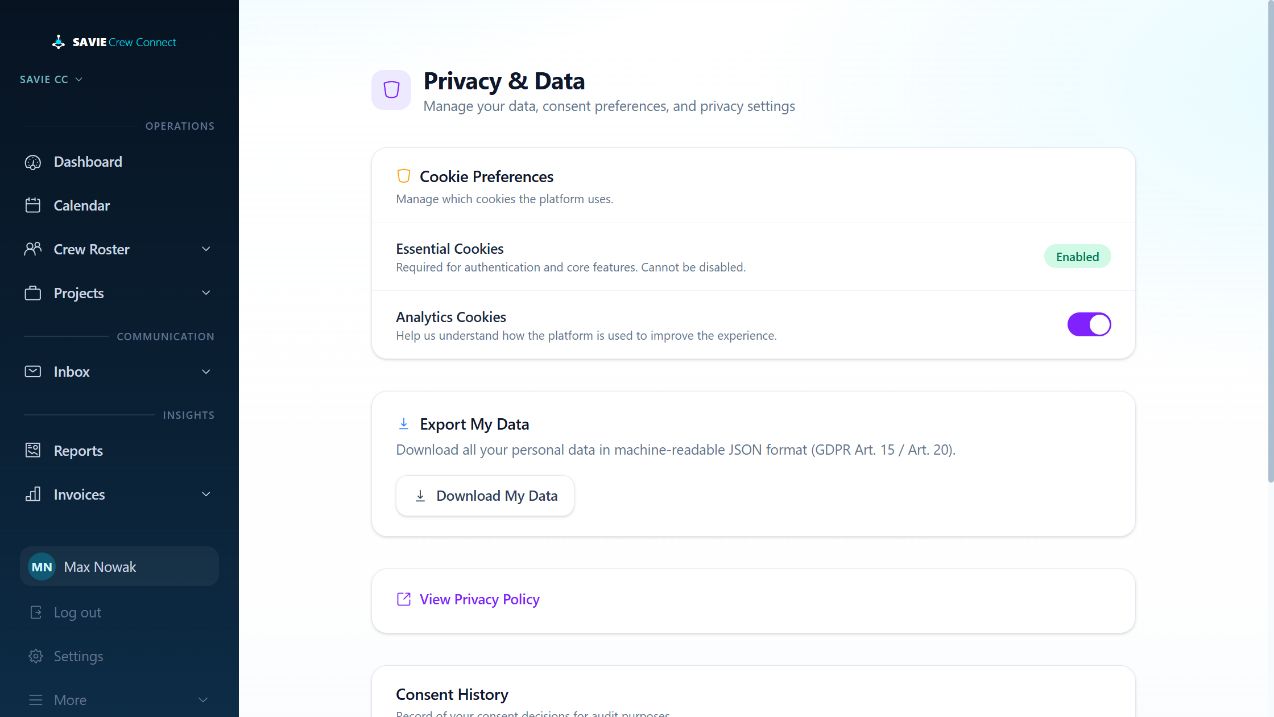
The Privacy & Data page provides self-service controls for cookies, access to personal data, and account deletion.
Privacy and Data
Cookie preferences
Essential cookies support authentication and core product functions and cannot be disabled. The user can separately enable or disable analytics cookies. SAVIE records consent decisions for the consent-history view when records exist.
Export personal data
Select Download My Data to obtain the user's available personal data in machine-readable JSON format. The export supports access and portability requests; store the downloaded file securely because it can contain personal and operational information.
Delete an account
Request Account Deletion starts the irreversible account-erasure process. The product anonymizes personal data and deactivates the account rather than presenting the action as deletion of every operational record. Existing records that must be retained or that belong to a customer's systems may follow their own legal and controller obligations.
Do not use this action for ordinary offboarding or to remove someone from one workspace. Confirm the user's intent, resolve active operational obligations, and use team or roster controls when only access should end.
Legal information
The sidebar links to the current Privacy Policy and Legal Notice. Public B2B Terms are also available from sign-in and registration surfaces.
Settings control organization-wide defaults and access. Availability depends on the user's workspace role and, for some areas, the subscription plan.
Standard rates
Set default day rates by discipline and phase: setup/teardown and show operation. SAVIE prefills these values when a dispatcher sends a booking. A role-specific value or the crew member's rate can still take precedence in the booking workflow.
Booking policies
Administrators can set whether new roles allow rate negotiation by default, enable urgent confirmed-crew cancellation emails with a day window and recipients, and opt into booking-request reminders and automatic expiry. The reminder/expiry defaults shown by the product are 72 hours to expiry and a reminder 24 hours before expiry.
Venues
The venue directory stores reusable names, addresses, coordinates, and default check-in radii. Selecting a saved venue when creating a job can populate its location and check-in configuration.
Gear and disciplines
This area maintains the workspace's matching taxonomy. Changes affect which disciplines and equipment can be assigned to crew profiles and job requirements. Review existing use before renaming, merging, or removing items.
Team, account, billing, and branding
Team manages workspace members and roles.
My Account manages the signed-in user's account details.
Billing shows plan and subscription controls available to the account.
Does a top match mean the dispatcher should book that person?
No. SAVIE ranks verified fit signals and conflicts, but the dispatcher makes the final decision after reviewing the candidate and current context.
Does applying to an open job confirm the booking?
No. It creates a request for dispatcher review. Only Confirmed reserves the crew member for the role.
Can one invoice cover several jobs?
Yes. Select multiple eligible bookings to create a consolidated invoice. Each booking remains itemized.
Can a crew member work with several SAVIE customers?
A freelancer profile can participate across eligible organizations. Data and bookings remain workspace-scoped. An own employee is exclusive to the employer workspace and cannot be listed on the marketplace.
Does SAVIE continuously track freelancer location?
No. Check-in uses a one-time location reading or manual fallback. SAVIE records the resulting check-in, not continuous movement.
Can submitted reviews be edited?
No. Reviews are immutable after submission, although authorized deletion is supported.
Are reminders and automatic expiry always active?
No. They are disabled by default and enabled per workspace with configurable timing.
Does confirming in SAVIE guarantee an easyjob update?
No. SAVIE confirmation remains valid even when the target easyjob allocation is not yet available. Read the sync or push result and let a later sync process the change when appropriate.
Which languages are available?
The product supports English and German. A user can change the interface language from the sidebar.
SAVIE combines in-product counters, inbox items, messages, and transactional email.
Freelancer email preferences
Under Settings > Email Notifications, a freelancer can independently enable or disable email for:
New booking request
Booking confirmed
Booking declined
Booking cancelled
Rate counter-offer
Invoice issued
Payment received
Changes affect future optional transaction emails. Invitations, email verification, and password resets are system messages and are always sent when required.
Other operational email
Depending on the workflow and configuration, SAVIE can also send timetable changes, standby offers and outcomes, crew-pack links with booking confirmation, booking-request reminders, automatic-expiry information, purchase-order notices, and urgent confirmed-crew cancellation alerts to configured dispatcher recipients.
In-product indicators
Sidebar badges and dashboard warnings summarize items such as requests, messages, schedule actions, staffing risk, and hour deviations. Opening an item or marking a conversation read can clear its unread indicator; dismissing an operational alert does not alter the underlying booking.
Email delivery depends on a valid address and configured delivery service. The in-product record remains the authoritative workflow state if an email is delayed or filtered.
An administrator performs dispatcher operations and governs the workspace. Administrative responsibilities include team membership and roles, billing and subscription controls where available, workspace-wide policy, and marking a completed project Paid.
Dispatcher
A dispatcher manages customers, projects, jobs, roster crew, matching, bookings, communication, reports, invoices, purchase orders, venues, rates, and operational settings in workspaces where they are a member. External integrations accept both Administrator and Dispatcher roles when the plan and configuration allow access.
Freelancer or employee
Crew accounts manage their own requests, applications, schedule, availability, profile, messages, rates, invoices, earnings, notification preferences, and privacy actions. They cannot operate another crew profile or a dispatcher workspace. Own employees cannot participate in the public marketplace.
Superuser
Superuser is a platform-operator capability, not a normal customer workspace role. It can cross certain workspace and billing boundaries and is protected from ordinary team-management changes. Customer documentation should not treat superuser access as part of routine administration.
Scope rule
Possessing an action in one workspace does not grant it in another. Access is evaluated using both the signed-in identity and the active workspace.
Negotiating is commercially or operationally under discussion.
Confirmed is approved for delivery.
Completed has finished operationally.
Paid is the terminal paid project state and is administrator-controlled.
Cancelled will not proceed.
Jobs
Draft, Negotiating, Confirmed, and Completed follow the project meanings at job level.
Cancelled closes the job without completion.
Draft jobs can be deleted. Once operational history exists, cancellation is the normal closure action.
Bookings
Requested awaits a response or dispatcher decision.
Negotiating has an active rate exchange.
Confirmed reserves the crew member for the role.
Declined was rejected by a party.
Expired closed automatically without an answer.
Cancelled was withdrawn after creation.
Booking type is separate from status: Primary fills the role; Standby is a ranked backup. A standby activation can be offered, accepted, declined, expired, or released.
Invoices and purchase orders
Invoice states are Draft, Issued, Paid, Overdue, and Cancelled. Purchase-order states are Draft, Pushed, and Error.
Check-in
Check-in states are Not checked in, On site, Outside radius, and Manual.
Check the active workspace first, then clear search, status, date, crew, and skills-only filters. Confirm that the record's status belongs in the selected view. A user may have different roles in different workspaces.
An invitation or reset link fails
Invitation links expire after 48 hours and password-reset links after one hour; both are single-use. Request a new link. Confirm that the invitation was sent to the email used by the existing account. A disabled account requires an administrator before it can accept an invitation.
My Profile says “Profile not found”
The crew login is not linked to the intended roster profile. Ask the workspace administrator to verify the email and crew record and resend or relink the profile invitation. Do not create duplicate profiles.
No matching crew are shown
Check the role's discipline, mandatory gear, minimum proficiency, dates, times, and quantity. Candidates are excluded by explicit unavailability or overlapping active primary bookings. Relax only requirements that are genuinely optional.
A freelancer cannot invoice a booking
The booking must be Confirmed, actual hours must be confirmed, and it must not already belong to an invoice. Correct hours in the booking workflow before creating the invoice.
Check-in is unavailable
Check-in opens one hour before the role call time and requires a confirmed primary booking. For geo-fencing, the job also needs coordinates. Use the manual fallback when location access is unavailable and provide a note when required.
A booking request did not expire or send a reminder
The workspace policy is opt-in. Verify that reminders and auto-expiry were enabled when the request was created and review the configured hours. Existing requests may not have an expiry timestamp if the feature was disabled at creation.
An integration sync or purchase-order push fails
Review the displayed error and sync history. Verify the subscription tier, connection test, SAVIE address, import scope, target allocation, and credentials. Do not repeatedly push until the reported configuration problem is resolved.
The version number appears at the bottom of the application sidebar. Select What's New from the sidebar's additional actions to review the highlights for the deployed release cluster.
For v2.4.0, the in-product summary highlights consolidated invoices, optional booking-request reminders and expiry, clearer easyjob confirmation behavior, and backup improvements.
How to use release information
Check the deployed version before following a newly published procedure.
Review plan, role, feature-flag, and configuration notes; deployment does not mean every workspace sees every feature.
Re-test customer-specific integrations after a relevant release.
Recapture handbook screenshots when visible controls or status labels change.
Keep the handbook's verified_version and last_reviewed fields current.
Release notes describe changes; the handbook remains the source for complete procedures and operating guidance.